Recent Microsoft Excel Performance Improvements

The latest release of Excel is focused on performance improvements. The main areas that have been addressed are RealTimeData functions, faster opening of workbooks with many user defined functions and faster aggregation.

RealTimeData functions (RTD) are commonly used to update a spreadsheet from a real-time data source. For example, if you have a stock portfolio you can add RTD functions to your sheet to provide real-time prices: as the stock moves, the price in the Excel cell is updated automatically:

Excel Real Time Stock Prices

Microsoft has removed bottlenecks in the underlying memory and data structures and also made it “thread safe”. The result is a significant performance improvement on sheets with lots of RTD functions.

I have noticed with one of my testing spreadsheets, with lots of RTD functions, that Excel now consumes less CPU and is generally more responsive.

User Defined Functions (UDFs) are custom functions that can be created by users or provided by an Add-in to add additional functionality to Excel. These functions operate the same as regular functions/formulas.

Opening workbooks with many UDFs was previously very slow as Excel looked up each UDF on the sheet. Now, Excel includes a UDF cache to make this process much faster.

Aggregation functions like SUMIFS, COUNTIFS, AVERAGEIFS, MAXIFS, MINIFS are some of the most commonly used Excel functions. With the latest release of Excel the performance of these functions is drastically improved.

Don’t forget, to take advantage of these recent improvements you must be subscribed to the Microsoft 365 monthly or semi-annual channel.

Excel: Calculate trading days between two dates

Yesterday a customer contacted us asking if our financial markets data Add-in could calculate the number of trading days between two dates. Unfortunately we don’t have this functionality as implementing it is not as easy as you may think.

You need to take into account weekends, which for most financial markets are Saturday and Sunday. Exceptions to this include several markets in the Middle East such as Saudi Arabia where the working week is Sunday to Thursday and the “weekend” is Friday and Saturday.

You also need to account for market holidays which are usually, although not always, also national holidays.

Fortunately Excel provides the NETWORKDAYS function, which:

Returns the number of whole working days between start_date and end_date. Working days exclude weekends and any dates identified in holidays.

This function can be used, together with a holiday lookup, to provide the functionality we need.

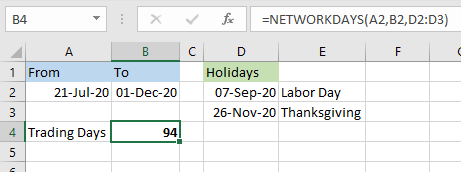
NETWORKDAYS function in Excel

In the example above we are using a holiday list lookup in column D together with the NETWORKDAYS function in cell B4 to compute the trading days between 21 July 2020 and 1 Dec 2020 for the US market.

The NETWORKDAYS function assumes that weekends are Saturday and Sunday. If you wish to specify a different weekend then you can use the NETWORKDAYS.INTL function.

Volatile Excel Functions

Today I was talking to a customer and his issue was a strange one which I hadn’t seen before.

Every time he changed ANYTHING on his spreadsheet he noticed that it would refresh unrelated formulas, i.e. formulas that did not reference the cells he was updating.

The main formula on his sheet was this:

=EPF.Yahoo.HistoricDatePeriod("AMD","Weekly","1 Jan 2020", TODAY(), "DESC", 1)

This is an Excel Price Feed dynamic array formula which returns weekly historical stock market data for AMD stock from 1 Jan 2020 to today.

This formula is non-volatile so should only update when any of its parameters change.

So, what was going on?

The culprit was actually one of the parameters: the Excel TODAY() function.

This built-in Excel function is a volatile function and will update ANYTIME ANYTHING on the spreadsheet changes.

What is a Volatile Function?

Microsoft defines a volatile function as follows:

…one whose value cannot be assumed to be the same from one moment to the next even if none of its arguments (if it takes any) has changed.

https://docs.microsoft.com/en-us/office/client-developer/excel/excel-recalculation

There are 8 built-in volatile Excel formulas, and it is worth being aware that using these in your spreadsheet could have unintended consequences:

  • NOW
  • TODAY
  • RANDBETWEEN
  • OFFSET
  • INDIRECT
  • INFO (depending on its arguments)
  • CELL (depending on its arguments)
  • SUMIF (depending on its arguments)

The Solution

The solution was simple, replace the TODAY() function with a string value of the current date. This could be either hardcoded into the formula or better still entered into a cell and referenced from the formula.

So, if you every notice your spreadsheet starting to slow-down or start doing unnecessary calculations then look out for volatile functions.