How to Get the Last Trading Day of Each Month in Excel

The problem with month-end dates

If you want to create a table of historical month-end prices in Excel, there is a small problem you need to deal with: the last day of a month isn’t always a trading day.

For example, 31 May 2025 was a Saturday, so there was no closing price for the S&P 500 on that date. Similarly, month-end dates can fall on Sundays or exchange holidays.

Let’s say we want to create a table showing the month-end levels for three major indices:

  • S&P 500 (^GSPC)
  • NASDAQ Composite (^IXIC)
  • FTSE 100 (^FTSE)

We could use the EPF.Yahoo.Historic.Close formula to retrieve the closing price:

=EPF.Yahoo.Historic.Close("^GSPC",A3)

This works when the date in A3 is a trading day. However, if the date is a Saturday, Sunday or exchange holiday, there is no closing price for that date and the formula returns an error:
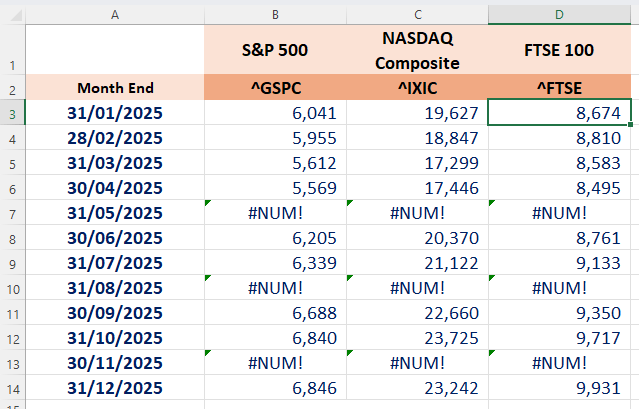
Formula =EPF.Yahoo.Historic.Close("^GSPC",A3) showing an error for a month-end date that falls on a non-trading day

In this article, we’ll show you how to automatically find the last available trading day’s closing price for each month, without having to manually enter the actual last trading date of each month.

Using historical data to find the last trading day

One option would be to use Excel’s WORKDAY function to move backwards from the month-end date.

The problem is that WORKDAY knows about weekends, but it doesn’t automatically know about every exchange-specific holiday.

A better approach is to ask Excel Price Feed for a small range of daily historical data ending on the month-end date, and then simply take the final available trading day.

For example for May 2025, we can do this using:

=EPF.Yahoo.HistoricDatePeriod("^GSPC","Daily",A7-14,A7,"ASC",0)

This retrieves the daily historical data from 14 calendar days before the month-end through to the month-end.

The result contains several columns of historical data:
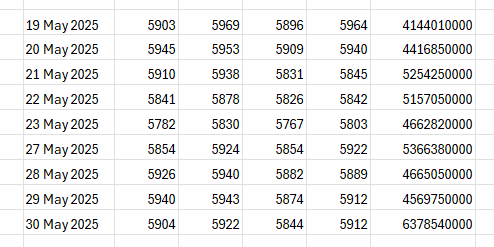
The HistoricDatePeriod formula entered in Excel, with the resulting Date, Open, High, Low, Close and Volume data spilling into the worksheet

Because we have requested the data in ascending order, the final row will contain the most recent trading day in our date range, in this case the 30th May 2025.

That is exactly what we need.

Why use a 14-day range?

You might wonder why we’re using:

A3-14

rather than simply looking at the previous few days.

The reason is that we’re working with calendar days, not trading days. A month-end can fall immediately after a weekend or a holiday period, so giving the formula a reasonable buffer makes sure there is a trading day available in the requested range.

Fourteen calendar days is normally plenty for ordinary weekends and holiday combinations. If you’re working with a market that has an unusually long closure, you can increase the buffer.

The important part is that the end date remains the month-end date, so the final row returned by HistoricDatePeriod is the last available trading day on or before that date.

Extracting the closing price

We don’t need all of the historical data in our final table. We only want the Close value from the final trading day.

Excel’s INDEX function can be used to extract the fifth column, which is the Close column:

=INDEX(data,,5)

We can then use Excel’s TAKE function to return the final value from that column:

=TAKE(closes,-1)

Rather than putting these into separate formulas, we can combine them using Excel’s LET function.

The final formula

Assuming:

  • The ticker is in row 2
  • The month-end date is in column A
  • The first ticker is in B3
  • The first month-end date is in A3

the formula is:

=LET(
data,EPF.Yahoo.HistoricDatePeriod(B$2,"Daily",$A3-14,$A3,"ASC",0),
closes,INDEX(data,,5),
TAKE(closes,-1)
)

One of the advantages of this formula is that you don’t need to change it for every index or every month.

The ticker reference is:

B$2

and the date reference is:

$A3

This means we can simply copy the formula across the columns and down the rows. The finished spreadsheet will look something like this:
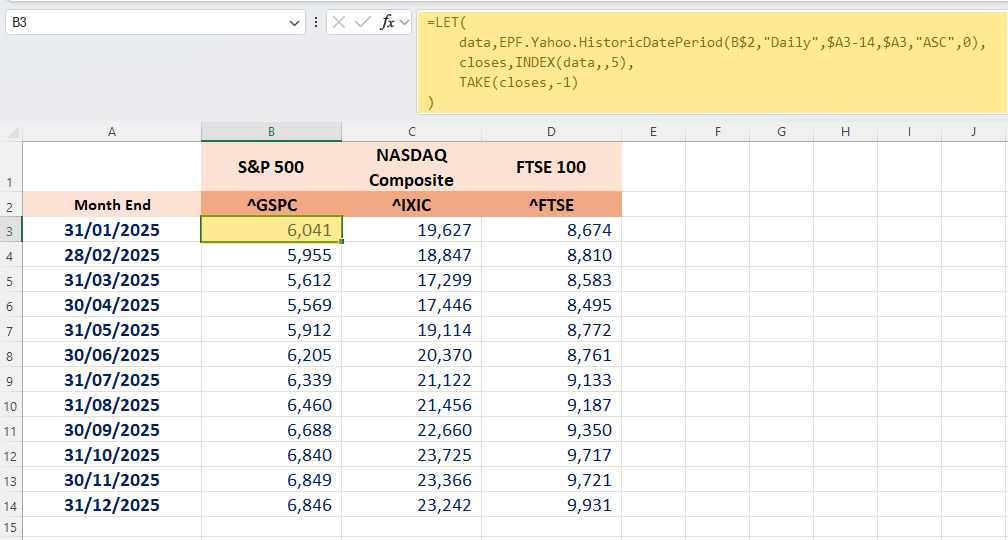
The final formula entered in B3, with the resulting closing price displayed

This formula does three things:

  1. Retrieves daily historical data for the ticker in B2, covering the 14 calendar days leading up to the date in A3.
  2. Extracts the Close column from the historical data.
  3. Returns the final close in the data set — which is the last available trading day on or before the month-end.

Notice that the dates in column A are still the calendar month-end dates. The formula automatically finds the last trading day when the month-end itself isn’t a trading day. For example, if the month ends on a Saturday, the formula will return Friday’s closing price.

This approach avoids maintaining a list of exchange holidays and means your spreadsheet continues to work automatically when you add more months or more indices.

Bonus Tip: Automatically generating the month-end dates

You don’t have to type all the month-end dates manually either.

If A3 contains:

31/01/2025

you can use:

=EOMONTH(A3,1)

in A4 and copy the formula down.

This will generate the subsequent month-end dates automatically:
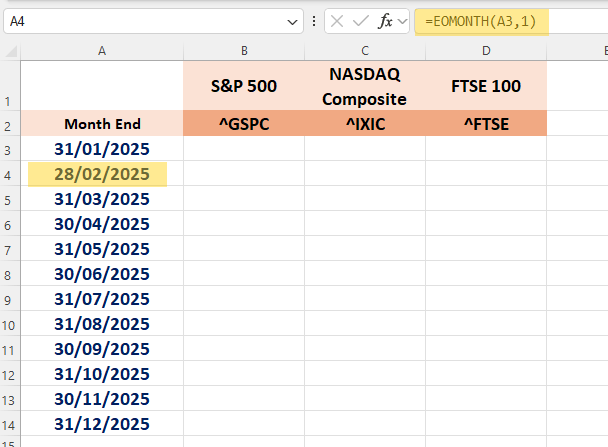
Column A showing the EOMONTH formula being copied down to generate all 12 month-end dates

We hope you find this useful!
Excel Price Feed Add-in Release (v1.139)

Today we released a new version of Excel Price Feed. To update your Add-in, please follow the instructions in the User Guide.

In this release, we plugged in any gaps in formulas which were missing the Quarterly and Trailing 12 Months equivalent. The gaps were in the Balance Sheet, Income Statement and Cash Flow groups of formulas.

You can see these formulas in use in our example Yahoo Finance spreadsheet.

Yahoo Finance: Income Statement formulas

We added the following Quarterly formulas, which take as input a stock ticker and reporting quarter:

  • EPF.Yahoo.QuarterlyImpairmentOfCapitalAssets
  • EPF.Yahoo.QuarterlyOtherSpecialIncomeCharges
  • EPF.Yahoo.QuarterlyRestructuringAndMergersAcquisition
  • EPF.Yahoo.QuarterlySpecialIncomeCharges
  • EPF.Yahoo.QuarterlyWriteOff

And the following Trailing 12 Month (TTM) Formulas, which take as input just a stock ticker:

  • EPF.Yahoo.TTMImpairmentOfCapitalAssets
  • EPF.Yahoo.TTMOtherSpecialIncomeCharges
  • EPF.Yahoo.TTMRestructuringAndMergersAcquisition
  • EPF.Yahoo.TTMSpecialIncomeCharges
  • EPF.Yahoo.TTMWriteOff

Here is an example of the new formulas used in a sheet. This dataset is for the NWL ticker.

And here are a couple of examples of formulas we used:

=EPF.Yahoo.QuarterlyImpairmentOfCapitalAssets("NWL",0)/1000
=EPF.Yahoo.TTMImpairmentOfCapitalAssets("NWL")/1000

Please bear in mind when using these formulas that not every company reports the same type of information so sometimes the formulas might return #NUM!

For more details please see the Excel Formula Reference: Income Statement section in the User Guide.

Yahoo Finance: Balance Sheet formulas

We also added some additional formulas for retrieving Quarterly figures, which all take as inputs a stock ticker and a quarter. Yahoo doesn’t make available equivalent TTM formulas.

  • EPF.Yahoo.QuarterlyAccountsPayable
  • EPF.Yahoo.QuarterlyAccountsReceivable
  • EPF.Yahoo.QuarterlyAssetsTotalCash
  • EPF.Yahoo.QuarterlyCapitalLeaseObligations
  • EPF.Yahoo.QuarterlyCurrentAssets
  • EPF.Yahoo.QuarterlyCurrentLiabilities
  • EPF.Yahoo.QuarterlyGoodwill
  • EPF.Yahoo.QuarterlyGoodwillAndOtherIntangibleAssets
  • EPF.Yahoo.QuarterlyInventory
  • EPF.Yahoo.QuarterlyInvestedCapital
  • EPF.Yahoo.QuarterlyLongTermDebt
  • EPF.Yahoo.QuarterlyNetDebt
  • EPF.Yahoo.QuarterlyNetPropertyPlantEquipment
  • EPF.Yahoo.QuarterlyRetainedEarnings
  • EPF.Yahoo.QuarterlyStockholdersEquity
  • EPF.Yahoo.QuarterlyTangibleBookValue
  • EPF.Yahoo.QuarterlyTotalAssets
  • EPF.Yahoo.QuarterlyTotalDebt
  • EPF.Yahoo.QuarterlyTotalLiabilities
  • EPF.Yahoo.QuarterlyTotalNonCurrentAssets
  • EPF.Yahoo.QuarterlyTotalNonCurrentLiabilities
  • EPF.Yahoo.QuarterlyWorkingCapital

Here is an example of these new formulas in action:

And here are some examples of the new formulas we used:

=EPF.Yahoo.QuarterlyAccountsPayable("NWL",0)/1000
=EPF.Yahoo.QuarterlyAccountsReceivable("NWL",0)/1000

For more details please see the Excel Formula Reference: Balance Sheet section in the User Guide.

Yahoo Finance: Cash Flow formulas

Lastly, we added quite a few additional Quarterly and TTM formulas for Cash Flow. Along with the formulas for Free Cash flow (added in the previous version) below are all the Cash Flow formulas in the system.

Quarterly formulas:

  • EPF.Yahoo.QuarterlyAccountsPayableChange
  • EPF.Yahoo.QuarterlyAccountsReceivableChange
  • EPF.Yahoo.QuarterlyAcquisitions
  • EPF.Yahoo.QuarterlyBeginningCashPosition
  • EPF.Yahoo.QuarterlyCapitalExpenditures
  • EPF.Yahoo.QuarterlyChangeInCash
  • EPF.Yahoo.QuarterlyChangeInWorkingCapital
  • EPF.Yahoo.QuarterlyCommonStockIssued
  • EPF.Yahoo.QuarterlyCommonStockRepurchased
  • EPF.Yahoo.QuarterlyDebtRepayment
  • EPF.Yahoo.QuarterlyDeferredIncomeTax
  • EPF.Yahoo.QuarterlyDepreciationAndAmortization
  • EPF.Yahoo.QuarterlyDividendsPaid
  • EPF.Yahoo.QuarterlyEndCashPosition
  • EPF.Yahoo.QuarterlyFreeCashFlow
  • EPF.Yahoo.QuarterlyInventoryChange
  • EPF.Yahoo.QuarterlyOtherCashflowsFromInvestingActivities
  • EPF.Yahoo.QuarterlyOtherFinancingActivities
  • EPF.Yahoo.QuarterlyOtherNonCashItems
  • EPF.Yahoo.QuarterlyPurchasesOfInvestments
  • EPF.Yahoo.QuarterlySalesOfInvestments
  • EPF.Yahoo.QuarterlyStockBasedCompensation
  • EPF.Yahoo.QuarterlyTotalCashflowsFromFinancingActivities
  • EPF.Yahoo.QuarterlyTotalCashflowsFromInvestingActivities
  • EPF.Yahoo.QuarterlyTotalCashflowsFromOperatingActivities

Trailing 12 Month (TTM) formulas:

  • EPF.Yahoo.TTMAccountsPayableChange
  • EPF.Yahoo.TTMAccountsReceivableChange
  • EPF.Yahoo.TTMAcquisitions
  • EPF.Yahoo.TTMBeginningCashPosition
  • EPF.Yahoo.TTMCapitalExpenditures
  • EPF.Yahoo.TTMChangeInCash
  • EPF.Yahoo.TTMChangeInWorkingCapital
  • EPF.Yahoo.TTMCommonStockIssued
  • EPF.Yahoo.TTMCommonStockRepurchased
  • EPF.Yahoo.TTMDebtRepayment
  • EPF.Yahoo.TTMDeferredIncomeTax
  • EPF.Yahoo.TTMDepreciationAndAmortization
  • EPF.Yahoo.TTMDividendsPaid
  • EPF.Yahoo.TTMEndCashPosition
  • EPF.Yahoo.TTMFreeCashFlow
  • EPF.Yahoo.TTMInventoryChange
  • EPF.Yahoo.TTMOtherCashflowsFromInvestingActivities
  • EPF.Yahoo.TTMOtherFinancingActivities
  • EPF.Yahoo.TTMOtherNonCashItems
  • EPF.Yahoo.TTMPurchasesOfInvestments
  • EPF.Yahoo.TTMSalesOfInvestments
  • EPF.Yahoo.TTMStockBasedCompensation
  • EPF.Yahoo.TTMTotalCashflowsFromFinancingActivities
  • EPF.Yahoo.TTMTotalCashflowsFromInvestingActivities
  • EPF.Yahoo.TTMTotalCashflowsFromOperatingActivities

Here is an example of the new formulas used in a sheet. This dataset is for the MSFT ticker.

Again the Quarterly formulas take a input a ticker and a reporting quarter and the Trailing 12 Month (TTM) Formulas take as input just a stock ticker. Examples:

=EPF.Yahoo.QuarterlyDividendsPaid("MSFT",0)/1000
=EPF.Yahoo.TTMDividendsPaid("MSFT")/1000

Please download our example Yahoo Finance spreadsheet to find examples of using these formulas.

We hope you find them useful. Let us know if there are any more formulas you would like us to add.

Excel Price Feed Add-in Release (v1.138)

Today we released a new version of Excel Price Feed. To update your Add-in, please follow the instructions in the User Guide.

This release includes the following changes:

Yahoo Finance: Additional Free Cash flow formulas

We recently added two new formulas to the Add-in for retrieving Free Cash flow figures:

  • EPF.Yahoo.TTMFreeCashFlow: takes as input a stock ticker
  • EPF.Yahoo.QuarterlyFreeCashFlow: takes as input a stock ticker and quarter

We already had formulas for Annual Free Cash flow available.

Here is an example of the new formulas used in a sheet. This dataset is for Exxon Mobil stock.

And here are the formulas we used:

=EPF.Yahoo.TTMFreeCashFlow("XOM")/1000
=EPF.Yahoo.AnnualFreeCashFlow("XOM",2024)/1000
=EPF.Yahoo.QuarterlyFreeCashFlow("XOM",0)/1000

For more details please see the Excel Formula Reference: Cash Flow section in the User Guide.

Yahoo Finance: Additional TTM formulas

We also added some additional formulas for retrieving Trailing 12 Months figures, which all take as inputs a stock ticker:

  • EPF.Yahoo.TTMBasicEPS
  • EPF.Yahoo.TTMDilutedEPS
  • EPF.Yahoo.TTMBasicAverageShares
  • EPF.Yahoo.TTMDilutedAverageShares

Here is an example of these formulas in action:

This dataset is for Exxon Mobil stock.

And here are the new formulas we used:

=EPF.Yahoo.TTMBasicEPS("XOM")
=EPF.Yahoo.TTMDilutedEPS("XOM")
=EPF.Yahoo.TTMBasicAverageShares("XOM")/1000
=EPF.Yahoo.TTMDilutedAverageShares("XOM")/1000

For more details please see the Excel Formula Reference: Income Statement section in the User Guide.

Understanding Company Retained Earnings

We recently received a feature request from one of our users to add “Retained Earnings” to our software.

What are Retained Earnings?

Retained earnings represent the cumulative net income a company has reinvested into the business instead of distributing to shareholders as dividends. In other words, it’s the company’s “savings account” of profits.

Retained Earnings = Beginning Retained Earnings + Net Income − Dividends Paid

This figure accumulates over time and reflects how much profit a company has decided to keep rather than return to shareholders. High retained earnings suggest a firm has consistently made profits and reinvested them.

Let’s compare two companies: Apple and Goldman Sachs

Retained Earnings: Apple vs. Goldman Sachs

As of their latest filings:

  • Apple Inc. had retained earnings of approximately $3 billion.
  • Goldman Sachs reported retained earnings exceeding $140 billion.

This comparison may seem surprising at first—after all, Apple is one of the most profitable companies in the world. So why does a financial firm like Goldman Sachs have retained earnings that dwarf Apple’s?

1. Dividend and Buyback Philosophy

Apple has paid significant dividends and engaged in massive share buybacks. Since 2012, Apple has returned hundreds of billions of dollars to shareholders, reducing its retained earnings in the process. This was a strategic choice to reward investors and reduce excess cash.

Goldman Sachs, on the other hand, has historically paid more conservative dividends and buybacks relative to its earnings. The firm tends to retain a large portion of its profits to meet regulatory capital requirements and to support future investment opportunities, such as trading capital or acquisitions.

2. Business Model and Regulatory Requirements

Goldman Sachs operates in a capital-intensive and highly regulated industry. As a major investment bank, it needs to maintain strong capital reserves to comply with Basel III regulations and withstand market shocks. Retaining earnings is one of the primary ways to build that buffer.

Apple, while capital-intensive in R&D and hardware production, doesn’t face the same regulatory capital requirements. Moreover, Apple’s enormous cash reserves (much of which were held overseas until recent tax reforms) meant it didn’t need to rely on retained earnings in the same way.

3. Use of Retained Earnings

Goldman uses retained earnings to:

  • Maintain risk buffers
  • Fund trading desks and investment banking operations
  • Meet regulatory ratios (like Tier 1 capital requirements)

Apple uses retained earnings to:

  • Invest in new products, supply chains, and technologies
  • Fund marketing and international expansion
  • Supplement shareholder returns

In Apple’s case, excess cash and borrowings have been used as alternatives to retained earnings for strategic initiatives, including acquisitions and R&D.

Retained Earnings and Excel Price Feed

So, how do we easily retrieve retained earnings in Excel? We can use the new formula:

=EPF.Yahoo.AnnualRetainedEarnings("GS",2024)

Which returns the Goldman Sachs retained earnings for 2024.

To find out more about Excel Price Feed head over to the website and try it free for 10 days: https://www.excelpricefeed.com/

Excel Price Feed Add-in Release (v1.128)

Today we released a new version of Excel Price Feed. To update your Add-in, please follow the instructions in the User Guide.

This release includes the following changes:

Yahoo Finance: Fix historic lookback formulas pre-post market option.

We recently added 3 new formulas to the Add-in for retrieving historical market data:

  • EPF.Yahoo.Historic1MinuteLookback
  • EPF.Yahoo.Historic5MinuteLookback
  • EPF.Yahoo.Historic1HourLookback

These formulas use a “lookback” whereby you can specify the number of periods back from now, together with an option to specify if pre and post market data is included.

Unfortunately, the pre/post market option was not working correctly and this is what has been fixed in this release.

Here is an example of one of these formulas in action:

AAPL hourly stock data with pre and post market data included

This dataset is for Apple stock and is hourly data points looking back the past 100 trading hours.

And here is the formula we used:

=EPF.Yahoo.Historic1HourLookback("AAPL",100,"DESC",1,1)

The dates and times shown in column A are in UTC, therefore we can see that pre and post market data is included, also known as “Outside Regular Hours”.

This data is becoming increasingly important as volumes outside normal market hours increase, and our improved historical formulas allow you to easily analyse this data in Excel.

For more details please see the Yahoo Finance Historical Array Formulas section in the User Guide.

Tesla: The most valuable car company in the world?

Tesla Model S car

Tesla is in the headlines, yet again, this time as it’s share price hits $500. The latest jump in price was triggered by the news that Tesla will join the S&P500 in December; it is now by far the most “valuable” car company in the world:

In 2020, Tesla has become the world’s most valuable car manufacturer and blown its sales forecasts out of the water.

Tesla soars as much as 13% after the automaker nabs a spot on the exclusive S&P 500 index | Markets Insider (businessinsider.com)

What exactly does “most valuable company” mean?

Market capitalzation is the most common measure, in the financial press, to gauge how valuable a company is. Market capitalization is simply:

Number of shares outstanding (x) the share price

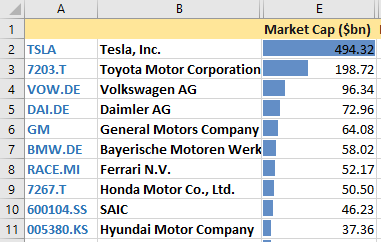
That is, how much it would cost to buy all the outstanding shares of a company. On this measure, Tesla is certainly the most valuable:

Largest, by market capitalzation, car companies in the world.

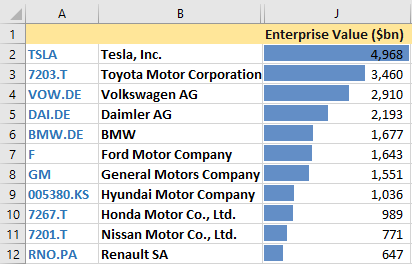
Another measure is Enterprise Value:

Market Capitalization (+) Total Debt (-) Cash & Cash Equivalents

Enterprise Value is the cost of how much it would actually cost you to buy the company, as you would not only need to buy all outstanding shares but also take on all debts of the company. You could offset some (or all) of the debt by the amount of cash & cash equivalents (i.e. liquid assets) that the company owns. Enterprise Value is often used as the theoretical takeover price of a company.

In this case, Tesla is still the most valuable car company but the other car companies are much closer in value:

Largest, by enterprise value, car companies in the world.

I think we can safely say that Tesla is currently the most valuable car company in the world but maybe not by such a large margin as the financial press reports.

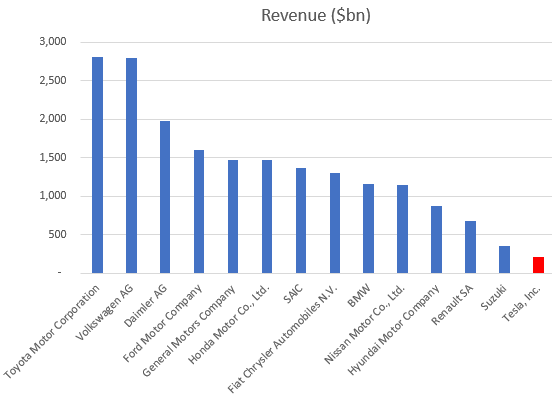
What about revenues, surely a company must have large revenues to justify a large valuation?

Global car companies annual revenues.

Tesla earns a fraction of the other car companies; investors are betting on Tesla growing these revenues substantially over the coming years…..

All data in the spreadsheet shown is provided by Excel Price Feed Add-in market data formulas (Yahoo Finance data).

Building an IG Index watchlist in Excel

Excel Price Feed Streaming Watchlist

IG Index / IG Markets provides over 16,000 different markets to trade, including FX, stocks, indices, commodities and cryptocurrencies. Keeping track of potential trading opportunities within this universe is daunting, you really need a way to filter out which markets you are interested in and monitor just those markets.

This is where watchlists can help.

They help you focus on only the markets that interest you and help quickly give you an overview of the overall financial market. For example, I like to monitor a watchlist of major stock indices, currency pairs and commodities. This is especially helpful when I first arrive at my desk in the morning and want to get a quick overview of global market sentiment.

Brokers, such as IG Index, provide basic tools for building watchlists, for example here is an extract from one of my watchlists on the IG website:

IG Web Platform Watchlist

This watchlist is fine for keeping an eye on a small selection of fields such as % day change but what if you want a more customized watchlist, with filters, sorting, visualizations, custom formulas etc?

This is where the Excel Price Feed Add-in comes in.

You can use the power and customisation of Excel using formulas and visualizations together with the live market data formulas provided by the Add-in to build your own watchlist in Excel.

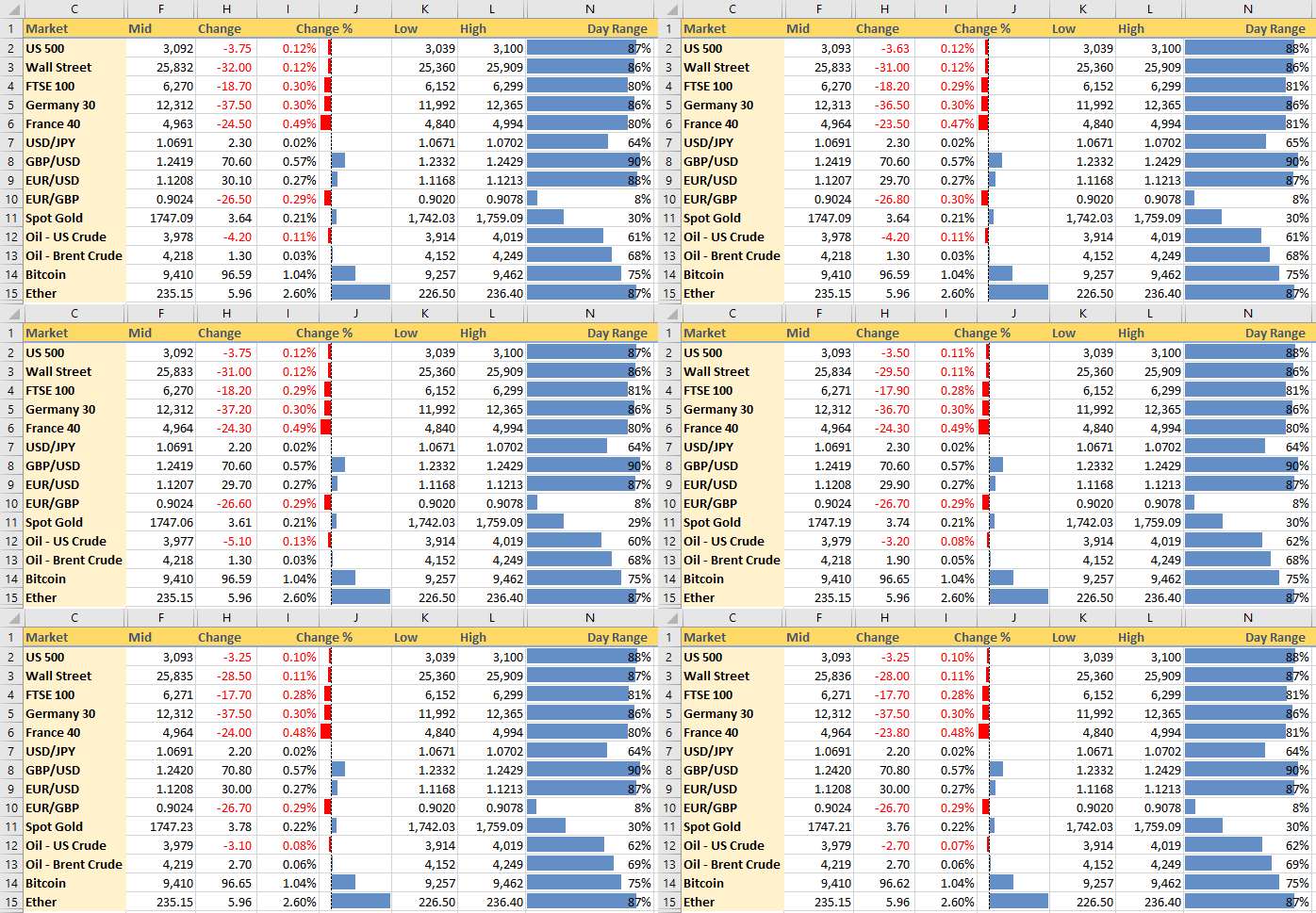
For example, we can use the daily high and low price to calculate the daily range and visualize where the current price is within the daily range.

In the example below I can see that the current level of the S&P500 is near the high of the daily range (83%) and the range today is 70 points:

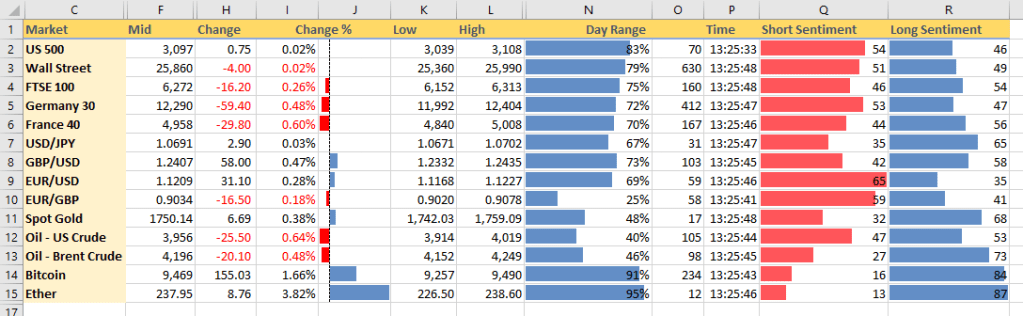
We can add more markets and more data, including client sentiment, to give us a live view of the market, highlighting the data we are interested in:

At a glance we can see that the major stock indices are little changed on the day and towards the high of their daily ranges. We can also see that the main mover today is the cryptocurrency Ether.

Using Excel like this we can track and compare markets exactly the way that suits our trading style. Once we have setup our spreadsheet it is updated automatically with live market data so it always gives us a live view of the market.

Download Excel Price Feed today and try it for yourself.

Welcome to our blog

This blog will be a place where we will share our thoughts, ideas and news covering finance, trading and technology. We will post product news, articles about Excel as well as thoughts on developments in trading and financial markets.

We hope you enjoy what we write and we would love to hear from you, so all comments welcome!

Andy.