Chart Crime and Bubbles

There are lies, damned lies and statistics. There are also charts that are published to mislead or to simply reinforce a point of view that’s flimsy at best or just plain wrong.

These charts are known as “chart crimes” and one appeared all over social media last month. Usually I would just make a comment and move on but this one received over 2 million views and deserves further investigation.

It was a chart comparing the growth of the Nasdaq over two periods: the dot com bubble and the current AI “bubble”. The conclusion being that we are on the same upward trajectory and all things being equal are due a major crash anytime soon.

Here is the chart and tweet in question:

AI Boom vs. Dot Com Bubble.

Aside from the obvious lack of timescale on the x axis and disparity in y axis scaling, does this chart bear any resemblance to reality?

Let’s build our own using Excel Price Feed to retrieve historical market data and produce an Excel chart based on the actual data.

For the Dot com bubble period we will use 1996 to 2002 and for present day we will look at data from Q4 2022 (when ChatGPT was released) to now.

To retrieve the data we will use the Excel Price Feed HistoricDatePeriod formula. Here is an example of how to retrieve monthly data for the NASDAQ Composite Index:

=EPF.Yahoo.HistoricDatePeriod("^IXIC","MONTHLY","1 Sep 2022","1 Oct 2025","ASC",1)

We will base each time series to 1 so we are comparing like-for-like. To do this we simply divide each point by the initial starting point.

We can now plot this data in Excel; the blue line is the dot com bubble, and the orange line is the past 3 years:

Compare Nasdaq dotcom bubble vs AI bubble

Not nearly as dramatic, the trajectory is similar but we are barely halfway towards the dot-com crash equivalent peak. So if the past is an indicator of the future then we should expect the market to double again from here and crash in about a year. But as they say, the past is not always a predictor of the future…

What about individual stocks?

Let’s look at one from the dot com bubble: Cisco (light blue) and one from now: Nvidia (green).

Nvidia has climbed at a much steeper rate than Cisco. Again, similar trajectory and timescales:
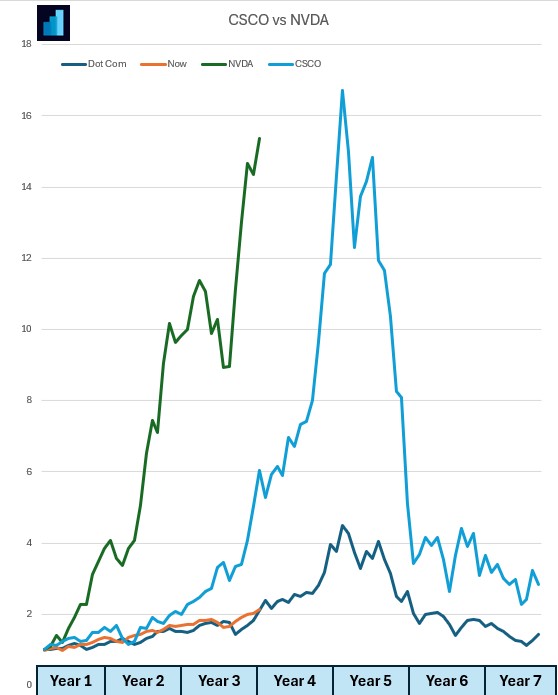
Compare CSCO dot com bubble with NVDA stock now

If you want to build financial charts like this yourself check out Excel Price Feed today and try it free for 10 days: https://www.excelpricefeed.com/
Excel Price Feed Add-in Release (v1.127)

Today we released a new version of Excel Price Feed. To update your Add-in, please follow the instructions in the User Guide.

This release includes the following changes:

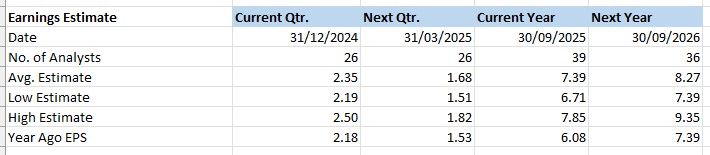
Earnings Estimates: New formulas

Excel stock analysis earnings estimates for Apple (AAPL) stock using the Excel Price Feed Add-in

We have added the following new formulas:

  • EPF.Yahoo.Earnings.Estimate.NoAnalysts.Annual
  • EPF.Yahoo.Earnings.Estimate.NoAnalysts.Quarter
  • EPF.Yahoo.Earnings.Estimate.Average.Annual
  • EPF.Yahoo.Earnings.Estimate.Average.Quarter
  • EPF.Yahoo.Earnings.Estimate.High.Annual
  • EPF.Yahoo.Earnings.Estimate.High.Quarter
  • EPF.Yahoo.Earnings.Estimate.Low.Annual
  • EPF.Yahoo.Earnings.Estimate.Low.Quarter

For example, this formula retrieves the number of analysts providing “next quarter” earnings estimates for Apple stock:

=EPF.Yahoo.Earnings.Estimate.NoAnalysts.Quarter("AAPL",0)

For more details please see the Excel Price Feed User Guide.

Historical Download: New Option

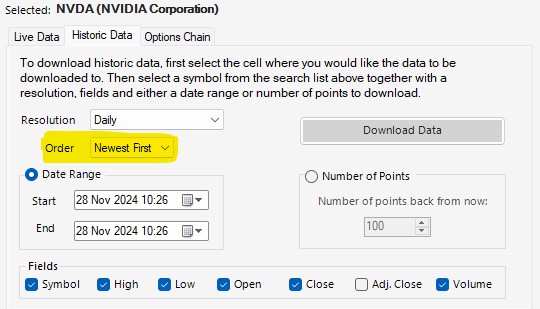
We have added an “Order” by option on the Yahoo Finance historical data download screen:

Yahoo Finance Excel download historical data

New Historic Lookback formulas

We have added 3 new lookback formulas for historical data, and all 3 include a pre-post market option:

  • EPF.Yahoo.Historic1MinuteLookback
  • EPF.Yahoo.Historic5MinuteLookback
  • EPF.Yahoo.Historic1HourLookback

For example, to retrieve 200 x 1 minute periods including pre-post market data, you can now use this formula:

=EPF.Yahoo.Historic1MinuteLookback("AAPL",200,"DESC",1,1)
Excel historic 1 minute intraday data download for Apple (AAPL) stock using the Excel Price Feed Add-in

For more details please see the Excel Price Feed User Guide.

Bug Fixes

Task Pane: fixed text colour.

4 Ways to Improve Excel Spreadsheet Performance

City scene at night

Excel Price Feed has been built to perform well with large spreadsheets and can handle spreadsheets that contain formulas for many financial instruments and data fields. You can quite easily build an S&P500 stock sheet and analyze a bunch of fundamental or live data points for each stock and not encounter any deterioration in performance.

However, if you start pushing the Add-in or Excel itself towards its “limits” or dont’ think too carefully about the format and design of your spreadsheet you may start to encounter some performance issues.

Here are some tips to help you improve the performance of your spreadsheets. Some of the tips are quite specific to using the Add-in, whilst others are more general and can be used on any type of spreadsheet:

Avoid volatile Excel functions

This issue is the probably the most common reason we see users contacting us regarding spreadsheet performance. Often a spreadsheet will use the Excel function TODAY() which is one of the Excel volatile functions. You should try to avoid using any Excel volatile functions, for a full explanation please see our blog post specifically about Excel volatile functions.

Avoid lots of single historical market data formulas

Often users wish to compare the historical performance of stocks. You can do this using the very useful single historical date formulas. I have seen many spreadsheets which use 100s of these single date formulas to return a time series. A much better alternative is to replace these formulas with a single historical data array formula. These formulas can return a time series of historical data with one formula.

If you don’t need to use all the data in the time series, or want to cross reference trading days/holidays for example, you can use the powerful Excel XLOOKUP function. In this case dedicate one tab on your sheet to time series data and reference this data from your main sheet.

Avoid single large spreadsheets

If you find your spreadsheets becoming unwieldy or suffering from performance issues due to the sheer volume of formulas and data you can look to split your single spreadsheet into multiple spreadsheets. This way you will be dealing with smaller volumes of data on each spreadsheet refresh and are less likely to breach data limits.

You can even reference cells and ranges in other spreadsheets quite easily by creating external references/links.

Convert dynamic formulas to static data

Often the data returned by the formulas on your spreadsheet does not change very often or does not change at all, especially if you are looking at fundamental or historical market data rather than live market data.

In this case you can replace your formulas with static values, using the “Paste Values” option in Excel. Select all the cells that you want to set to static, copy them to the clipboard, then “paste values” back into your spreadsheet. Using this method you can initially populate your spreadsheet using formulas, and then replace those formulas with static values/text.

This will greatly reduce the number of formulas on your spreadsheet and improve performance.

Summary

I hope these tips help you improve the performance of your spreadsheets. If you have any more tips please leave a comment below.

Volatile Excel Functions

Today I was talking to a customer and his issue was a strange one which I hadn’t seen before.

Every time he changed ANYTHING on his spreadsheet he noticed that it would refresh unrelated formulas, i.e. formulas that did not reference the cells he was updating.

The main formula on his sheet was this:

=EPF.Yahoo.HistoricDatePeriod("AMD","Weekly","1 Jan 2020", TODAY(), "DESC", 1)

This is an Excel Price Feed dynamic array formula which returns weekly historical stock market data for AMD stock from 1 Jan 2020 to today.

This formula is non-volatile so should only update when any of its parameters change.

So, what was going on?

The culprit was actually one of the parameters: the Excel TODAY() function.

This built-in Excel function is a volatile function and will update ANYTIME ANYTHING on the spreadsheet changes.

What is a Volatile Function?

Microsoft defines a volatile function as follows:

…one whose value cannot be assumed to be the same from one moment to the next even if none of its arguments (if it takes any) has changed.

https://docs.microsoft.com/en-us/office/client-developer/excel/excel-recalculation

There are 8 built-in volatile Excel formulas, and it is worth being aware that using these in your spreadsheet could have unintended consequences:

  • NOW
  • TODAY
  • RANDBETWEEN
  • OFFSET
  • INDIRECT
  • INFO (depending on its arguments)
  • CELL (depending on its arguments)
  • SUMIF (depending on its arguments)

The Solution

The solution was simple, replace the TODAY() function with a string value of the current date. This could be either hardcoded into the formula or better still entered into a cell and referenced from the formula.

So, if you every notice your spreadsheet starting to slow-down or start doing unnecessary calculations then look out for volatile functions.