We have had several customer discussions recently regarding date formulas, as dates are an important aspect of financial data.
All of the date/times used throughout the Add-in are in UTC format.
UTC (Coordinated Universal Time) is the main global time standard and establishes a single timezone across the planet.
The question is, how does a UTC time translate to my local (timezone) time?
You may search on the web and find a simple solution that adds or subtracts a number of hours to the date, however these solutions do not account for adjustments due to daylight savings time.
We have therefore started adding some general date formulas to our software, the first of which is: EPF.Dates.UTCToLocal
This simple Excel formula is useful for converting any UTC date/time to the date/time in the timezone of your PC/Excel. It handles all timezones as well as daylight savings.
We’ve created a quick video to show this formula in action:
We are looking at adding more date functionality around timezones. Do let us know if there is some date functionality that you think is missing from Excel and we can look into adding it.
We recently received a feature request from one of our users to add “Retained Earnings” to our software.
What are Retained Earnings?
Retained earnings represent the cumulative net income a company has reinvested into the business instead of distributing to shareholders as dividends. In other words, it’s the company’s “savings account” of profits.
Retained Earnings = Beginning Retained Earnings + Net Income − Dividends Paid
This figure accumulates over time and reflects how much profit a company has decided to keep rather than return to shareholders. High retained earnings suggest a firm has consistently made profits and reinvested them.
Let’s compare two companies: Apple and Goldman Sachs
Retained Earnings: Apple vs. Goldman Sachs
As of their latest filings:
Apple Inc. had retained earnings of approximately $3 billion.
This comparison may seem surprising at first—after all, Apple is one of the most profitable companies in the world. So why does a financial firm like Goldman Sachs have retained earnings that dwarf Apple’s?
1. Dividend and Buyback Philosophy
Apple has paid significant dividends and engaged in massive share buybacks. Since 2012, Apple has returned hundreds of billions of dollars to shareholders, reducing its retained earnings in the process. This was a strategic choice to reward investors and reduce excess cash.
Goldman Sachs, on the other hand, has historically paid more conservative dividends and buybacks relative to its earnings. The firm tends to retain a large portion of its profits to meet regulatory capital requirements and to support future investment opportunities, such as trading capital or acquisitions.
2. Business Model and Regulatory Requirements
Goldman Sachs operates in a capital-intensive and highly regulated industry. As a major investment bank, it needs to maintain strong capital reserves to comply with Basel III regulations and withstand market shocks. Retaining earnings is one of the primary ways to build that buffer.
Apple, while capital-intensive in R&D and hardware production, doesn’t face the same regulatory capital requirements. Moreover, Apple’s enormous cash reserves (much of which were held overseas until recent tax reforms) meant it didn’t need to rely on retained earnings in the same way.
3. Use of Retained Earnings
Goldman uses retained earnings to:
Maintain risk buffers
Fund trading desks and investment banking operations
Meet regulatory ratios (like Tier 1 capital requirements)
Apple uses retained earnings to:
Invest in new products, supply chains, and technologies
Fund marketing and international expansion
Supplement shareholder returns
In Apple’s case, excess cash and borrowings have been used as alternatives to retained earnings for strategic initiatives, including acquisitions and R&D.
Retained Earnings and Excel Price Feed
So, how do we easily retrieve retained earnings in Excel? We can use the new formula:
=EPF.Yahoo.AnnualRetainedEarnings("GS",2024)
Which returns the Goldman Sachs retained earnings for 2024.
To find out more about Excel Price Feed head over to the website and try it free for 10 days: https://www.excelpricefeed.com/
We recently added 3 new formulas to the Add-in for retrieving historical market data:
EPF.Yahoo.Historic1MinuteLookback
EPF.Yahoo.Historic5MinuteLookback
EPF.Yahoo.Historic1HourLookback
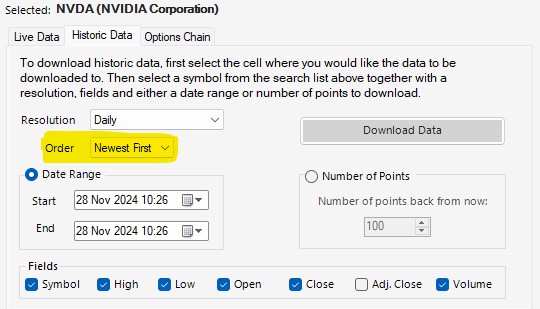
These formulas use a “lookback” whereby you can specify the number of periods back from now, together with an option to specify if pre and post market data is included.
Unfortunately, the pre/post market option was not working correctly and this is what has been fixed in this release.
Here is an example of one of these formulas in action:
This dataset is for Apple stock and is hourly data points looking back the past 100 trading hours.
The dates and times shown in column A are in UTC, therefore we can see that pre and post market data is included, also known as “Outside Regular Hours”.
This data is becoming increasingly important as volumes outside normal market hours increase, and our improved historical formulas allow you to easily analyse this data in Excel.
AI is everywhere now; not a day goes by without at least one company releasing an AI related news announcement, the latest being Volkswagen who are integrating ChatGPT into their next generation of cars.
These AI announcements are usually accompanied by a spike in the company’s stock price and this, together with the recent rise in the tech and broader market, has prompted some market commentators to declare that we are in an AI fueled stock market bubble.
Are we in a bubble?
Unfortunately, we will only know if and when the bubble bursts; by its very definition we cannot know if we are in a bubble but let’s crunch some numbers to investigate further.
We’ll use Excel Price Feed to get some financial data into Excel, and we’ll start by looking at the “Magnificent Seven”.
What are the Magnificent Seven? Well, these are the largest, most significant players in the global tech industry, and are leading the charge in bringing AI to the masses:
Apple
Microsoft
Alphabet
Amazon
Nvidia
Meta
Tesla
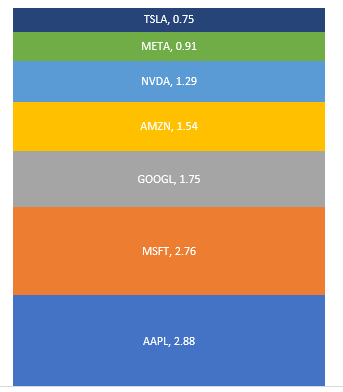
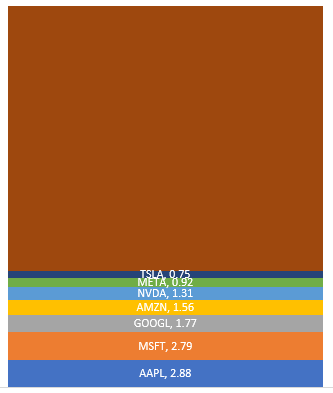
We’ll start with market capitalization, and use the Excel Price Feed formula EPF.Yahoo.MarketCap together with a nice stacked chart to see how they stack up (excuse the pun), units are $trillion:
The total market capitalization of these 7 companies is almost $12 trillion, but how does this compare to the market in general, say the S&P500?
Here we have added the rest of the S&P500 ($27 trillion) and can see that the Magnificent Seven account for more than one quarter of the entire market:
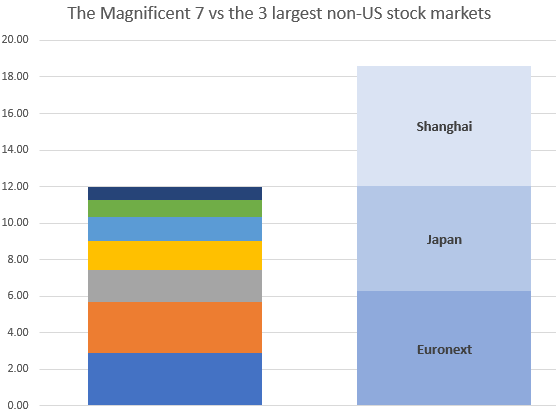
What is even more astounding is how these 7 stack up against entire stock exchanges.
Here we are comparing them with the 3 largest non-US exchanges: Shanghai, Euronext and Japan:
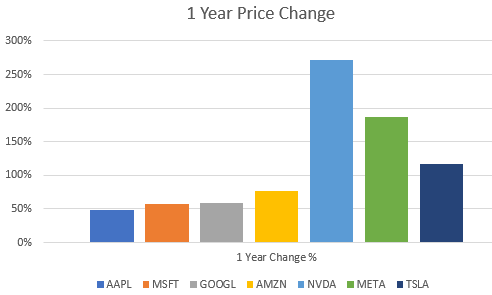
Now let’s see how they have grown over the last 12 months.
We’ll use the EPF.Yahoo.Historic.Close formula to retrieve the stock price at the start of 2023 and compare it to the current stock price using EPF.Yahoo.Price
They’ve all increased by at least 50%, with Nvidia, perhaps the most AI centric stock being the star performer.
So, are we in a bubble?
Why not download Excel Price Feed today and crunch some numbers yourself. You can also download the spreadsheet created for this post from our website to get started.
The US Government, via the US Treasury, offers a wide range of fixed income securities to investors for the purposes of Government funding. These securities are categorised as US Treasury bills, notes or bonds – all are equivalent, the different terminology simply refers to the different maturities. The are often referred to simply as “US Treasuries”:
Treasury Bonds: Mature in either 20 or 30 years
Treasury Notes: Mature between 2 and 10 years
Treasury Bills: Mature from 4 weeks upto one year
The US Treasury Rate (or Yield) is the effective interest rate that the US Government pays on it’s debt. This is the rate that holders of a US Treasury can expect to receive, and as you might expect this rate varies depending on a number of factors.
Some of the many factors, both US and global, that can influence rates are:
How much confidence investors have in the US economy as well as the global economy
Current and expected inflation rates
Current and expected market uncertainty and volatility
The most influential and closely monitored US Treasury is the 10 Year Treasury Note. It is used as a benchmark rate for setting lending rates, in particular for banks to calculate mortgage rates. It is also used as a gauge of investor confidence.
When investor confidence drops, US Treasury rates tend to drop as investors move out of risky assets and into the safe haven of US Government backed securities – and conversely when investors are confident, which usually means stock markets are buoyant then rates will increase to attract reluctant investors back into Treasuries.
Using Excel we can look at current and historical US Treasury rates. The US Treasury makes this data freely available and you can use the Excel Price Feed Add-in formulas to easily get this data into your Excel spreadsheet.
Using the Excel formula below we can retrieve a historical time series (1000 daily data points) of US Treasury yields:
And then plot this data (for the 10 Year Treasury Note) using an Excel chart:
We can see that during 2020, when the world was in the grip of the COVID-19 pandemic, yield/rates dropped dramatically down to around 0.5% as investors moved out of risky assets and US Treasuries became highly sought after. Yields then steadily rose but have dropped back recently as inflation spiked and interest rates rose around the globe to combat it.
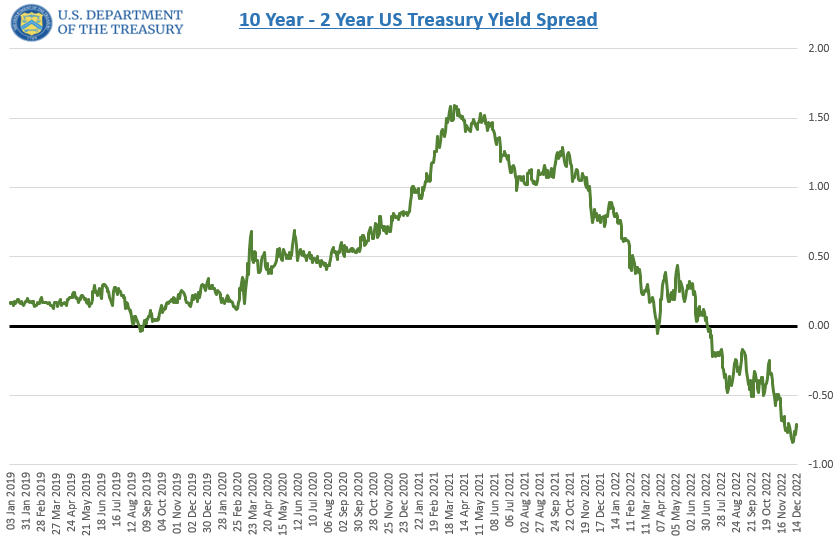
In addition to analysing historical trends of a single US Treasury we can analyse the difference between Treasuries of different maturities, otherwise known as the spread.
Below we can see the 10 Year – 2 Year Spread, perhaps the most common spread used for analysis, and we can see that it is currently “inverted”, i.e. below zero – the 10 Year yield is less than the 2 Year yield. This is often recognised as a leading indicator of a forthcoming recession:
We can use another of the Excel Price Feed formulas, such as the one below:
=EPF.Nasdaq.Last("USTREASURY","YIELD","10 yr")
to retrieve a single data point, the current yield for a single maturity (in this case the 10 Year). Applying a simple data bar visualization in Excel enables us to see how current yields across maturities compare:
We can now clearly see that the 10 year currently has the lowest yield, whereas the 6 month rate has the highest – a spread of over 1%.
I hope this article has given a good overview of what US Treasuries are and how you can use Excel and the Excel Price Feed Add-in formulas to bring US Treasury data into your Excel spreadsheet.
Technical Analysis is used by traders and investors to help identify patterns and trends in historical financial prices. This analysis is often used to produce trading signals or to backtest a trading strategy.
Excel should be a great tool for technical analysis, however traders and investors often struggle with three problems:
Getting historical price and volume data into Excel.
Writing formulas for indicator calculations.
Updating their spreadsheet when new price data is available.
These problems are all solved by using the Excel Technical Analysis Toolkit which has just been released as a new feature of the Excel Price Feed Add-in.
The Toolkit provides a library of new easy-to-use Excel Technical Analysis formulas, so there is no longer a need for complicated Excel formulas or obscure and hard-to-maintain VBA.
Getting historical price and volume data into Excel
Usually, this is achieved by either copying/pasting data from a website/datafeed or downloading a file of prices. With Excel Price Feed you can use one of the many historical data formulas to easily pull prices into your spreadsheet.
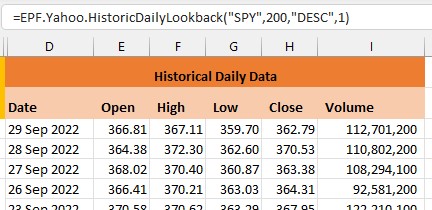
For example, to pull daily historical close prices into Excel for the S&P500 Index, you can use this formula:
Where 200 is the number of days we need, DESC means display the data in DESCending order, so more recent day first, and 1 means show column headings:
Now that we have the historical price data in Excel, we can now perform some Technical Analysis.
Excel Formulas for Technical Analysis
Suppose we want to look at how Bollinger Bands perform for the S&P500 year-to-date using a 20-period lookback with 2 standard deviations.
Without Excel Price Feed, this is how to calculate Bollinger Bands using standard Excel formulas (note that this shows only one third of the steps required):
The first two parameters are simply the close price and date columns of the historical data, and the other two parameters are the number of periods in the lookback and the number of standard deviations.
This is what it looks like in Excel:
Now that the data is in Excel we can easily add an Excel chart to visualize how the bands move with price, and from this we can start to identify support and resistance and potential trend changes:
Updating the spreadsheet when new price data is available
To produce this data we have used two formulas, one for the historical data and one for the technical analysis. When we want to update the data in our spreadsheet, we simply refresh the spreadsheet. This will result in the latest daily close prices being downloaded and the Bollinger Bands being recalculated.
No more copying and pasting data or formulas.
Excel Price Feed has a built in Refresh button as well as automatic refresh functions:
To find out more about Excel Price Feed head over to the website and try it free for 10 days: https://www.excelpricefeed.com/
Today we released a small but very important new feature: a set of new formulas to convert commonly used financial instrument identifiers, such as a CUSIP or ISIN, to a ticker.
This has been a recurring request ever since we launched Excel Price Feed. Often a user is given a spreadsheet with a bunch of ISIN codes and wants to connect those with our live pricing formulas. The problem is that these formulas require a ticker not an ISIN.
What makes this now possible?
FIGI (Financial Instrument Global Identifier)
What is FIGI you may ask?
Well FIGI is an attempt to produce an open standard for financial identifiers, and part of that effort has produced a service that describes the links between different types of codes.
We have now integrated this into our software so conversion formulas are readily available in Excel:
For example, to convert an ISIN (US4592001014) to a ticker (IBM) this simple Excel formula can be used:
=EPF.ID.ISIN.To.Ticker("US4592001014")
And to convert a CUSIP to a ticker, well that is very simple too:
=EPF.ID.CUSIP.To.Ticker("037833100")
To find out more about Excel Price Feed head over to the website and try it free for 10 days: https://www.excelpricefeed.com/
An ADR is a stock certificate, denominated in US dollars, issued by a US based bank or broker. It represents a specific number of shares, usually one, in a foreign company’s stock i.e. a company that is not listed on a US stock exchange.
ADRs are listed and are tradeable on a US stock exchange such as the NYSE and trade in an equivalent way to any US based stock.
Why trade an ADR?
An ADR enables US investors to gain exposure to foreign stocks without the complication of trading on foreign exchanges. Also, because ADRs are priced in US dollars and their dividends are paid in US dollars, investors do not need to deal with foreign exchange conversions.
In addition, foreign companies find them beneficial as they can attract US based investors without needing to list on a US based stock exchange.
How to retrieve ADR prices in Excel
The Excel Price Feed Add-in provides access to ADR prices via the Yahoo Finance connector.
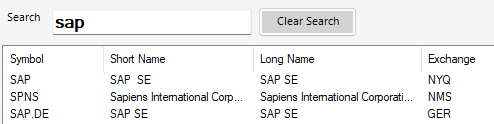
We can find the ADR ticker/symbol using the built-in search function.
For example, below we are searching for the SAP ADR. SAP is a German software company listed on the German stock exchange but not listed in the US:
Here we can see both the German listed stock (SAP.DE on the GER Exchange) as well as the ADR (SAP) listed on the NYSE (NYQ Exchange).
ADRs are treated like regular US stocks, so for example to request the current price of the SAP ADR we use the following Excel formula:
=EPF.Yahoo.Price("SAP")
Which gives the following result in Excel:
I hope this gives a good overviews of ADRs and how to easily retrieve ADR data in Excel.