The problem with month-end dates
If you want to create a table of historical month-end prices in Excel, there is a small problem you need to deal with: the last day of a month isn’t always a trading day.
For example, 31 May 2025 was a Saturday, so there was no closing price for the S&P 500 on that date. Similarly, month-end dates can fall on Sundays or exchange holidays.
Let’s say we want to create a table showing the month-end levels for three major indices:
- S&P 500 (
^GSPC) - NASDAQ Composite (
^IXIC) - FTSE 100 (
^FTSE)
We could use the EPF.Yahoo.Historic.Close formula to retrieve the closing price:
=EPF.Yahoo.Historic.Close("^GSPC",A3)
This works when the date in A3 is a trading day. However, if the date is a Saturday, Sunday or exchange holiday, there is no closing price for that date and the formula returns an error:
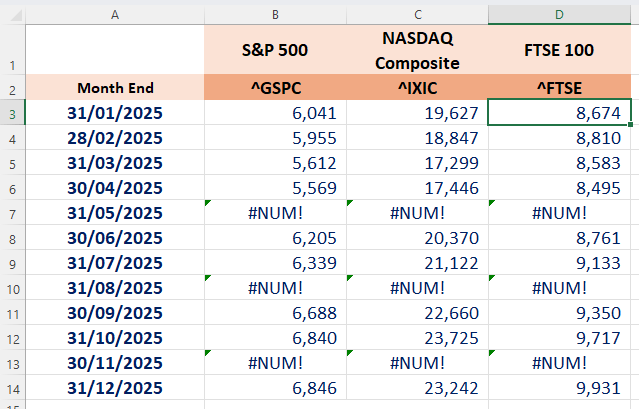
In this article, we’ll show you how to automatically find the last available trading day’s closing price for each month, without having to manually enter the actual last trading date of each month.
Using historical data to find the last trading day
One option would be to use Excel’s WORKDAY function to move backwards from the month-end date.
The problem is that WORKDAY knows about weekends, but it doesn’t automatically know about every exchange-specific holiday.
A better approach is to ask Excel Price Feed for a small range of daily historical data ending on the month-end date, and then simply take the final available trading day.
For example for May 2025, we can do this using:
=EPF.Yahoo.HistoricDatePeriod("^GSPC","Daily",A7-14,A7,"ASC",0)
This retrieves the daily historical data from 14 calendar days before the month-end through to the month-end.
The result contains several columns of historical data:
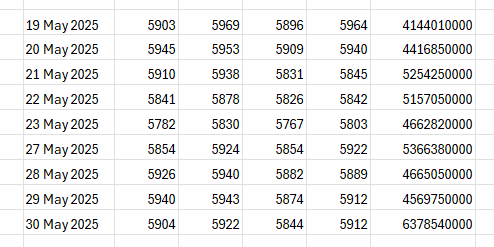
Because we have requested the data in ascending order, the final row will contain the most recent trading day in our date range, in this case the 30th May 2025.
That is exactly what we need.
Why use a 14-day range?
You might wonder why we’re using:
A3-14
rather than simply looking at the previous few days.
The reason is that we’re working with calendar days, not trading days. A month-end can fall immediately after a weekend or a holiday period, so giving the formula a reasonable buffer makes sure there is a trading day available in the requested range.
Fourteen calendar days is normally plenty for ordinary weekends and holiday combinations. If you’re working with a market that has an unusually long closure, you can increase the buffer.
The important part is that the end date remains the month-end date, so the final row returned by HistoricDatePeriod is the last available trading day on or before that date.
Extracting the closing price
We don’t need all of the historical data in our final table. We only want the Close value from the final trading day.
Excel’s INDEX function can be used to extract the fifth column, which is the Close column:
=INDEX(data,,5)
We can then use Excel’s TAKE function to return the final value from that column:
=TAKE(closes,-1)
Rather than putting these into separate formulas, we can combine them using Excel’s LET function.
The final formula
Assuming:
- The ticker is in row 2
- The month-end date is in column A
- The first ticker is in
B3 - The first month-end date is in
A3
the formula is:
=LET( data,EPF.Yahoo.HistoricDatePeriod(B$2,"Daily",$A3-14,$A3,"ASC",0), closes,INDEX(data,,5), TAKE(closes,-1))
One of the advantages of this formula is that you don’t need to change it for every index or every month.
The ticker reference is:
B$2
and the date reference is:
$A3
This means we can simply copy the formula across the columns and down the rows. The finished spreadsheet will look something like this:
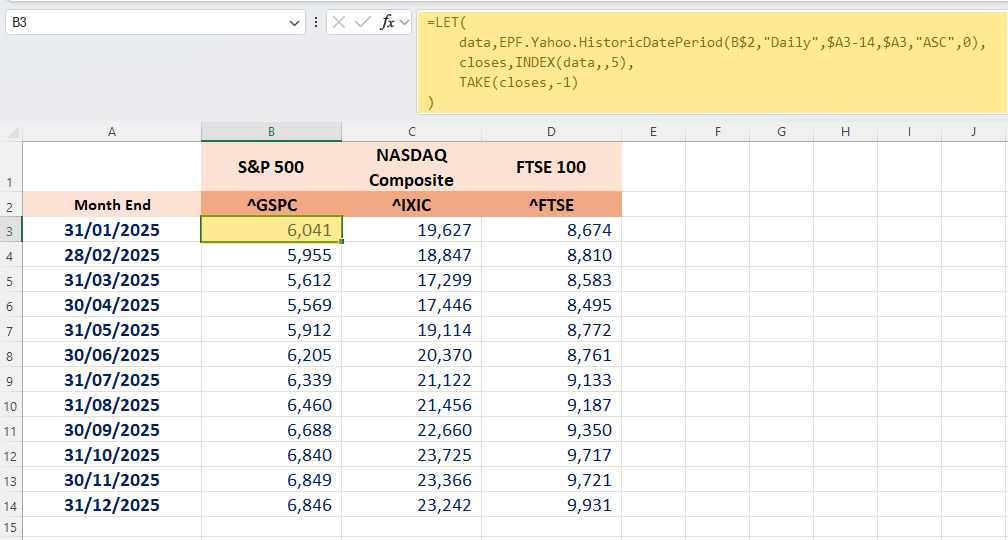
This formula does three things:
- Retrieves daily historical data for the ticker in
B2, covering the 14 calendar days leading up to the date inA3. - Extracts the Close column from the historical data.
- Returns the final close in the data set — which is the last available trading day on or before the month-end.
Notice that the dates in column A are still the calendar month-end dates. The formula automatically finds the last trading day when the month-end itself isn’t a trading day. For example, if the month ends on a Saturday, the formula will return Friday’s closing price.
This approach avoids maintaining a list of exchange holidays and means your spreadsheet continues to work automatically when you add more months or more indices.
Bonus Tip: Automatically generating the month-end dates
You don’t have to type all the month-end dates manually either.
If A3 contains:
31/01/2025
you can use:
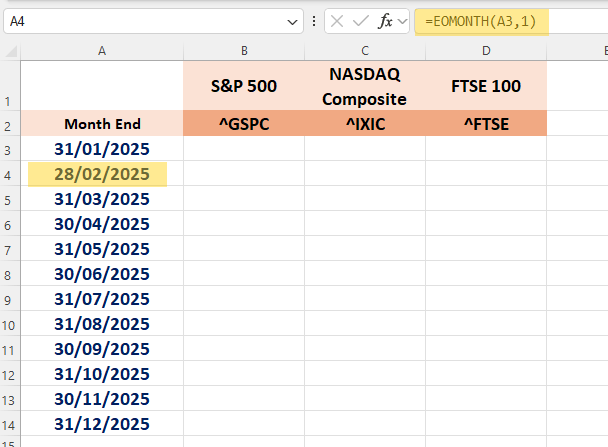
=EOMONTH(A3,1)
in A4 and copy the formula down.
This will generate the subsequent month-end dates automatically:
We hope you find this useful!

