Chart Crime and Bubbles

There are lies, damned lies and statistics. There are also charts that are published to mislead or to simply reinforce a point of view that’s flimsy at best or just plain wrong.

These charts are known as “chart crimes” and one appeared all over social media last month. Usually I would just make a comment and move on but this one received over 2 million views and deserves further investigation.

It was a chart comparing the growth of the Nasdaq over two periods: the dot com bubble and the current AI “bubble”. The conclusion being that we are on the same upward trajectory and all things being equal are due a major crash anytime soon.

Here is the chart and tweet in question:

AI Boom vs. Dot Com Bubble.

Aside from the obvious lack of timescale on the x axis and disparity in y axis scaling, does this chart bear any resemblance to reality?

Let’s build our own using Excel Price Feed to retrieve historical market data and produce an Excel chart based on the actual data.

For the Dot com bubble period we will use 1996 to 2002 and for present day we will look at data from Q4 2022 (when ChatGPT was released) to now.

To retrieve the data we will use the Excel Price Feed HistoricDatePeriod formula. Here is an example of how to retrieve monthly data for the NASDAQ Composite Index:

=EPF.Yahoo.HistoricDatePeriod("^IXIC","MONTHLY","1 Sep 2022","1 Oct 2025","ASC",1)

We will base each time series to 1 so we are comparing like-for-like. To do this we simply divide each point by the initial starting point.

We can now plot this data in Excel; the blue line is the dot com bubble, and the orange line is the past 3 years:

Compare Nasdaq dotcom bubble vs AI bubble

Not nearly as dramatic, the trajectory is similar but we are barely halfway towards the dot-com crash equivalent peak. So if the past is an indicator of the future then we should expect the market to double again from here and crash in about a year. But as they say, the past is not always a predictor of the future…

What about individual stocks?

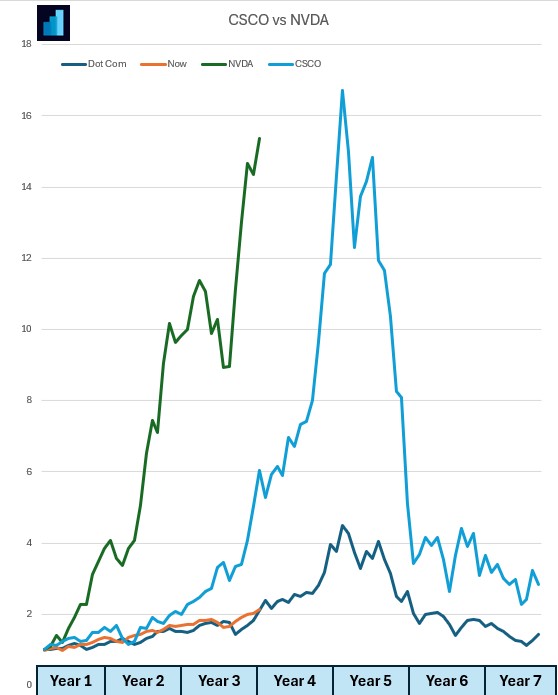
Let’s look at one from the dot com bubble: Cisco (light blue) and one from now: Nvidia (green).

Nvidia has climbed at a much steeper rate than Cisco. Again, similar trajectory and timescales:

Compare CSCO dot com bubble with NVDA stock now

If you want to build financial charts like this yourself check out Excel Price Feed today and try it free for 10 days: https://www.excelpricefeed.com/

How to use Excel to find the highest high and lowest low for a stock time series (including the date)

AAPL high low chart in Excel

We were recently contacted by a user who was trying to calculate the market high and low over an particular date period and more importantly the date that the high or low was reached.

Neither Excel Price Feed nor Excel have a single formula to calculate this, but we can use several Excel functions to achieve it.

For this example we will look at daily data, although the procedure and formulas used can be applied to any timeframe.

We start by using the Excel Price Feed “Historic Date Period” formula to retrieve the daily high/low/open/close over a specified date period for a specified resolution:

=EPF.Yahoo.HistoricDatePeriod(B1,"Daily",B2,B3,"DESC",1)

B1 is the stock ticker, B2 is the start date and B3 is the end date.

This formula outputs a table as shown below, the formula is in cell D1:

apple excel daily ohlcv

Finding the highest high over the period is easy, we simply use the MAX formula to find the maximum value of all the daily highs (column F):

=MAX(F:F)

To find the lowest low we use the MIN formula with column G:

=MIN(G:G)

The hard part is finding the date at which the highest high and lowest low was reached. We can achieve this by using a combination of Excel functions.

We will now walk through how to find the date of the highest high, which is in cell B5:

  1. Using the MATCH function we can find the row where the highest high was achieved. The MATCH function searches a range, in this case the column (G:G) and finds the row where the highest high is, in this case the value in cell B5 (260.10).
  2. We then take this row and use the ADDRESS function to combine it with the column where the date is located, column E (or the 5th column as this function requires a numeric column reference).
  3. We now have an address for the location of the date, via a column and row number. To return the actual value at this address we must use the INDIRECT function, this will then provide the date value of “26 Dec 2024”

The full formula looks like this:

=INDIRECT(ADDRESS(MATCH(B5,G:G,0),5))

Below we can see the full formula in the formula bar at the top and the result is “26 Dec 2024”:

excel highest high

To find the date of the lowest low we just replace column G with column H and the low which is in cell B5.

We hope you find this useful and if you would like to try the spreadsheet for yourself you can download it from here.

How to convert UTC to local time in Excel

We have had several customer discussions recently regarding date formulas, as dates are an important aspect of financial data.

All of the date/times used throughout the Add-in are in UTC format.

UTC (Coordinated Universal Time) is the main global time standard and establishes a single timezone across the planet.

The question is, how does a UTC time translate to my local (timezone) time?

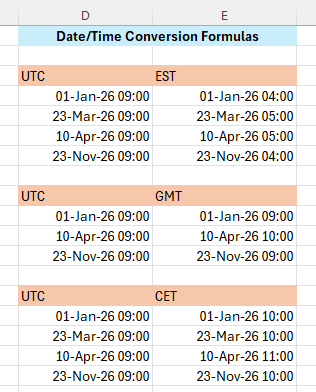
You may search on the web and find a simple solution that adds or subtracts a number of hours to the date, however these solutions do not account for adjustments due to daylight savings time.

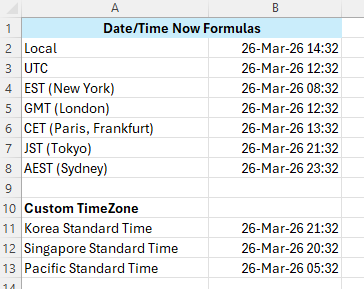
We have therefore started adding some general date formulas to our software, the first of which is: EPF.Dates.UTCToLocal

This simple Excel formula is useful for converting any UTC date/time to the date/time in the timezone of your PC/Excel. It handles all timezones as well as daylight savings.

We’ve created a quick video to show this formula in action:

We are looking at adding more date functionality around timezones. Do let us know if there is some date functionality that you think is missing from Excel and we can look into adding it.

Understanding Company Retained Earnings

We recently received a feature request from one of our users to add “Retained Earnings” to our software.

What are Retained Earnings?

Retained earnings represent the cumulative net income a company has reinvested into the business instead of distributing to shareholders as dividends. In other words, it’s the company’s “savings account” of profits.

Retained Earnings = Beginning Retained Earnings + Net Income − Dividends Paid

This figure accumulates over time and reflects how much profit a company has decided to keep rather than return to shareholders. High retained earnings suggest a firm has consistently made profits and reinvested them.

Let’s compare two companies: Apple and Goldman Sachs

Retained Earnings: Apple vs. Goldman Sachs

As of their latest filings:

  • Apple Inc. had retained earnings of approximately $3 billion.
  • Goldman Sachs reported retained earnings exceeding $140 billion.

This comparison may seem surprising at first—after all, Apple is one of the most profitable companies in the world. So why does a financial firm like Goldman Sachs have retained earnings that dwarf Apple’s?

1. Dividend and Buyback Philosophy

Apple has paid significant dividends and engaged in massive share buybacks. Since 2012, Apple has returned hundreds of billions of dollars to shareholders, reducing its retained earnings in the process. This was a strategic choice to reward investors and reduce excess cash.

Goldman Sachs, on the other hand, has historically paid more conservative dividends and buybacks relative to its earnings. The firm tends to retain a large portion of its profits to meet regulatory capital requirements and to support future investment opportunities, such as trading capital or acquisitions.

2. Business Model and Regulatory Requirements

Goldman Sachs operates in a capital-intensive and highly regulated industry. As a major investment bank, it needs to maintain strong capital reserves to comply with Basel III regulations and withstand market shocks. Retaining earnings is one of the primary ways to build that buffer.

Apple, while capital-intensive in R&D and hardware production, doesn’t face the same regulatory capital requirements. Moreover, Apple’s enormous cash reserves (much of which were held overseas until recent tax reforms) meant it didn’t need to rely on retained earnings in the same way.

3. Use of Retained Earnings

Goldman uses retained earnings to:

  • Maintain risk buffers
  • Fund trading desks and investment banking operations
  • Meet regulatory ratios (like Tier 1 capital requirements)

Apple uses retained earnings to:

  • Invest in new products, supply chains, and technologies
  • Fund marketing and international expansion
  • Supplement shareholder returns

In Apple’s case, excess cash and borrowings have been used as alternatives to retained earnings for strategic initiatives, including acquisitions and R&D.

Retained Earnings and Excel Price Feed

So, how do we easily retrieve retained earnings in Excel? We can use the new formula:

=EPF.Yahoo.AnnualRetainedEarnings("GS",2024)

Which returns the Goldman Sachs retained earnings for 2024.

To find out more about Excel Price Feed head over to the website and try it free for 10 days: https://www.excelpricefeed.com/

Are we in an AI fueled stock market bubble?

AI (Artifical Intelligence) chip on a circuit board

AI is everywhere now; not a day goes by without at least one company releasing an AI related news announcement, the latest being Volkswagen who are integrating ChatGPT into their next generation of cars.

These AI announcements are usually accompanied by a spike in the company’s stock price and this, together with the recent rise in the tech and broader market, has prompted some market commentators to declare that we are in an AI fueled stock market bubble.

Are we in a bubble?

Unfortunately, we will only know if and when the bubble bursts; by its very definition we cannot know if we are in a bubble but let’s crunch some numbers to investigate further.

We’ll use Excel Price Feed to get some financial data into Excel, and we’ll start by looking at the “Magnificent Seven”.

What are the Magnificent Seven? Well, these are the largest, most significant players in the global tech industry, and are leading the charge in bringing AI to the masses:

  • Apple
  • Microsoft
  • Alphabet
  • Amazon
  • Nvidia
  • Meta
  • Tesla

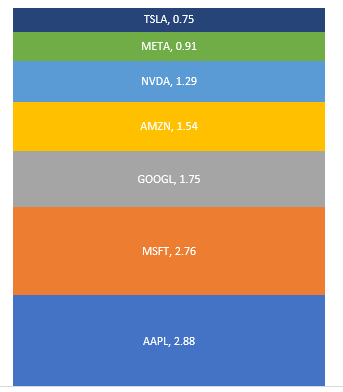
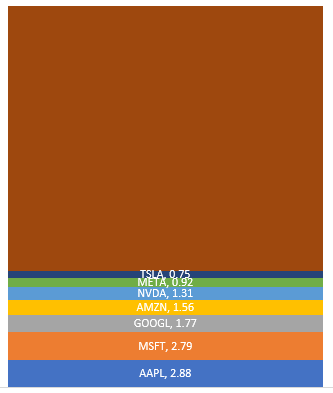
We’ll start with market capitalization, and use the Excel Price Feed formula EPF.Yahoo.MarketCap together with a nice stacked chart to see how they stack up (excuse the pun), units are $trillion:

Magnificent Seven Market Capitalization as of January 2024

The total market capitalization of these 7 companies is almost $12 trillion, but how does this compare to the market in general, say the S&P500?

Here we have added the rest of the S&P500 ($27 trillion) and can see that the Magnificent Seven account for more than one quarter of the entire market:

Magnificent Seven stocks market capitalization versus the S&P500

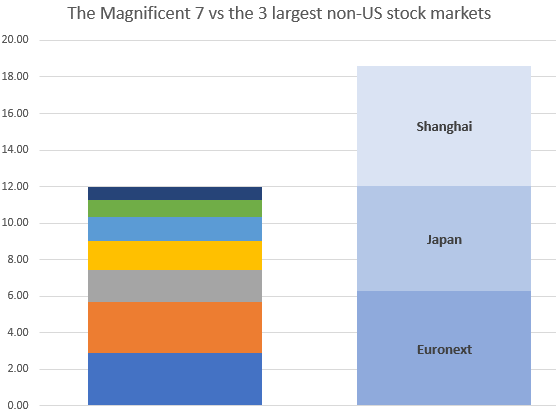
What is even more astounding is how these 7 stack up against entire stock exchanges.

Here we are comparing them with the 3 largest non-US exchanges: Shanghai, Euronext and Japan:

Magnificent Seven market capitalization versus Shanghai, Japan and Euronext stock markets

Now let’s see how they have grown over the last 12 months.

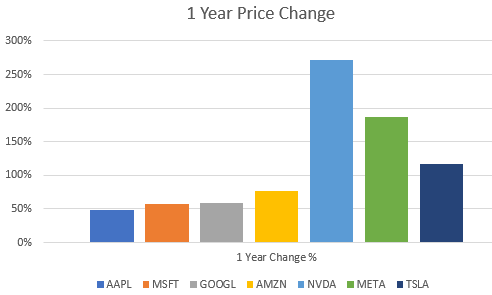
We’ll use the EPF.Yahoo.Historic.Close formula to retrieve the stock price at the start of 2023 and compare it to the current stock price using EPF.Yahoo.Price

Magnificent 7 stocks one year price change chart for 2023

They’ve all increased by at least 50%, with Nvidia, perhaps the most AI centric stock being the star performer.

So, are we in a bubble?

Why not download Excel Price Feed today and crunch some numbers yourself. You can also download the spreadsheet created for this post from our website to get started.

How to use Excel to convert from an ISIN or CUSIP to a stock ticker

Today we released a small but very important new feature: a set of new formulas to convert commonly used financial instrument identifiers, such as a CUSIP or ISIN, to a ticker.

This has been a recurring request ever since we launched Excel Price Feed. Often a user is given a spreadsheet with a bunch of ISIN codes and wants to connect those with our live pricing formulas. The problem is that these formulas require a ticker not an ISIN.

What makes this now possible?

FIGI (Financial Instrument Global Identifier)

What is FIGI you may ask?

Well FIGI is an attempt to produce an open standard for financial identifiers, and part of that effort has produced a service that describes the links between different types of codes.

We have now integrated this into our software so conversion formulas are readily available in Excel:

For example, to convert an ISIN (US4592001014) to a ticker (IBM) this simple Excel formula can be used:

=EPF.ID.ISIN.To.Ticker("US4592001014")

And to convert a CUSIP to a ticker, well that is very simple too:

=EPF.ID.CUSIP.To.Ticker("037833100")

To find out more about Excel Price Feed head over to the website and try it free for 10 days: https://www.excelpricefeed.com/

Market Performance 2022 YTD using Excel

Just a quick blog post today, looking at market performance for a bunch of stocks so far this year (otherwise known as year to date or YTD).

As a reference point, today (24 March 2022) the S&P500 is at -6.2% and the Nasdaq is at -11% for YTD.

I am using the Excel Price Feed Add-in to download latest price data and start of year prices for a small set of diverse US stocks. I use the live price formula (EPF.Yahoo.Price) in column C together with the historical price formula (EPF.Yahoo.Historic.Close) in column D to retrieve the stock price on the first trading day of the year which was 3rd January.

This produces the following data table (you can see the formula for cell D2 in the formula bar):

2022 YTD Stock Performance in Excel using the Excel Price Feed Add-in

Now that we have the current stock price and at the start of the year we can calculate the % change using a simple Excel formula which works out the difference (C2-D2) as a proportion of D2:

Calculate stock price YTD change in Excel

Now we can apply this formula to the rest of the table and create a simple bar chart to visualize the performance:

YTD stock performance bar chart in Excel

As we can see the tech sector is under-performing, particularly Facebook and Netflix whilst the oil giants Exxon and Chevron are out-performing everything else.

I hope this gives a good introduction to stock analysis using Excel, to find out more about Excel Price Feed head over to the website and try it free for 10 days: https://www.excelpricefeed.com/

Stock Option Symbols

In the world of financial markets most people are aware of stock symbols, the short codes that are used to identify a company. These codes, called symbols or tickers usually reflect the name of the company, for example the symbol for Apple is APPL and the symbol for Microsoft is MSFT.

These symbols represent the tradeable stock or equity in the company.

Other financial instruments have other types of identifiers, for example stock options, which we will discuss in this article.

Stock Option symbols follow a standardised format; for example in the first column below, you can see symbols for 4 different Tesla stock options from the Yahoo Finance website:

Tesla option symbols

The symbol consists of 4 parts:

Component parts of an option symbol

These parts are:

  • Stock symbol, eg. TSLA
  • Expiry Date, eg 3 December 2021, which is written as 211203 (year then month then day)
  • Option type: P (Put) or C (Call)
  • Strike Price: eg 1095

The Excel Price Feed Add-in includes a simple Excel formula EPF.OptionTicker which is used to construct an option symbol from its component parts. This is very useful when you wish to analyse lots of options in Excel without having to manually create lots of option symbols.

For example, here is the formula being used to construct the symbol for the option above:

=EPF.OptionTicker("TSLA","Call","3 Dec 2021",1095)

We can see below the formula in action in Excel.

Excel Price Feed Option Ticker formula

The real power of the forumla, however, is realised when you want to analyse multiple options, which you can combine with the EPF.Yahoo.OptionsChain.ExpiryDates formula (column C below).

Here we are looking at Apple put options with a strike of 160.

We have used the symbol formula in column D and then used the Price/Volume/Open interest formulas for columns E,F,G. This provides a nice visualization of option volume and open interest for a specific strike:

Apple stock options calls at same strike price.

Check out Excel Price Feed today to see how it can help you with your stock option trading.

4 Ways to Improve Excel Spreadsheet Performance

City scene at night

Excel Price Feed has been built to perform well with large spreadsheets and can handle spreadsheets that contain formulas for many financial instruments and data fields. You can quite easily build an S&P500 stock sheet and analyze a bunch of fundamental or live data points for each stock and not encounter any deterioration in performance.

However, if you start pushing the Add-in or Excel itself towards its “limits” or dont’ think too carefully about the format and design of your spreadsheet you may start to encounter some performance issues.

Here are some tips to help you improve the performance of your spreadsheets. Some of the tips are quite specific to using the Add-in, whilst others are more general and can be used on any type of spreadsheet:

Avoid volatile Excel functions

This issue is the probably the most common reason we see users contacting us regarding spreadsheet performance. Often a spreadsheet will use the Excel function TODAY() which is one of the Excel volatile functions. You should try to avoid using any Excel volatile functions, for a full explanation please see our blog post specifically about Excel volatile functions.

Avoid lots of single historical market data formulas

Often users wish to compare the historical performance of stocks. You can do this using the very useful single historical date formulas. I have seen many spreadsheets which use 100s of these single date formulas to return a time series. A much better alternative is to replace these formulas with a single historical data array formula. These formulas can return a time series of historical data with one formula.

If you don’t need to use all the data in the time series, or want to cross reference trading days/holidays for example, you can use the powerful Excel XLOOKUP function. In this case dedicate one tab on your sheet to time series data and reference this data from your main sheet.

Avoid single large spreadsheets

If you find your spreadsheets becoming unwieldy or suffering from performance issues due to the sheer volume of formulas and data you can look to split your single spreadsheet into multiple spreadsheets. This way you will be dealing with smaller volumes of data on each spreadsheet refresh and are less likely to breach data limits.

You can even reference cells and ranges in other spreadsheets quite easily by creating external references/links.

Convert dynamic formulas to static data

Often the data returned by the formulas on your spreadsheet does not change very often or does not change at all, especially if you are looking at fundamental or historical market data rather than live market data.

In this case you can replace your formulas with static values, using the “Paste Values” option in Excel. Select all the cells that you want to set to static, copy them to the clipboard, then “paste values” back into your spreadsheet. Using this method you can initially populate your spreadsheet using formulas, and then replace those formulas with static values/text.

This will greatly reduce the number of formulas on your spreadsheet and improve performance.

Summary

I hope these tips help you improve the performance of your spreadsheets. If you have any more tips please leave a comment below.

Tesla: The most valuable car company in the world?

Tesla Model S car

Tesla is in the headlines, yet again, this time as it’s share price hits $500. The latest jump in price was triggered by the news that Tesla will join the S&P500 in December; it is now by far the most “valuable” car company in the world:

In 2020, Tesla has become the world’s most valuable car manufacturer and blown its sales forecasts out of the water.

Tesla soars as much as 13% after the automaker nabs a spot on the exclusive S&P 500 index | Markets Insider (businessinsider.com)

What exactly does “most valuable company” mean?

Market capitalzation is the most common measure, in the financial press, to gauge how valuable a company is. Market capitalization is simply:

Number of shares outstanding (x) the share price

That is, how much it would cost to buy all the outstanding shares of a company. On this measure, Tesla is certainly the most valuable:

Largest, by market capitalzation, car companies in the world.

Another measure is Enterprise Value:

Market Capitalization (+) Total Debt (-) Cash & Cash Equivalents

Enterprise Value is the cost of how much it would actually cost you to buy the company, as you would not only need to buy all outstanding shares but also take on all debts of the company. You could offset some (or all) of the debt by the amount of cash & cash equivalents (i.e. liquid assets) that the company owns. Enterprise Value is often used as the theoretical takeover price of a company.

In this case, Tesla is still the most valuable car company but the other car companies are much closer in value:

Largest, by enterprise value, car companies in the world.

I think we can safely say that Tesla is currently the most valuable car company in the world but maybe not by such a large margin as the financial press reports.

What about revenues, surely a company must have large revenues to justify a large valuation?

Global car companies annual revenues.

Tesla earns a fraction of the other car companies; investors are betting on Tesla growing these revenues substantially over the coming years…..

All data in the spreadsheet shown is provided by Excel Price Feed Add-in market data formulas (Yahoo Finance data).