Excel Price Feed Add-in Release (v1.140)

Today we released a new version of Excel Price Feed. To update your Add-in, please follow the instructions in the User Guide.

This release includes the following changes:

Yahoo Finance: EPF.Yahoo.HistoricDatePeriod formula

We’ve made several improvements to this formula.

We have fixed an issue which affected certain stock/date combinations which returned additional data points outside the requested date range.

We have also added an additional optional parameter includePrePost which if set will include pre and post market data in the returned time series (for periods less than daily).

We have also made 3 of the parameters optional so you just need to specify a ticker, period and start/end date.

For example, this formula will return hourly data for Apple from 1 to 4 October; it will return headers, date in descending date order and not include pre or post market data:

=EPF.Yahoo.HistoricDatePeriod("APPL","Hourly","2025-10-01","2025-10-04")

The other parameters: order, includeHeaders and includePrePost are optional.

For more details please see the Excel Formula Reference: Historical Array Formulas section in the User Guide.

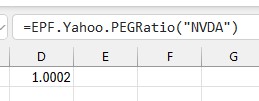
Yahoo Finance: fix EPF.Yahoo.PEGRatio formula

This formula has been fixed:

PEG Ratio formula in Excel

Chart Crime and Bubbles

There are lies, damned lies and statistics. There are also charts that are published to mislead or to simply reinforce a point of view that’s flimsy at best or just plain wrong.

These charts are known as “chart crimes” and one appeared all over social media last month. Usually I would just make a comment and move on but this one received over 2 million views and deserves further investigation.

It was a chart comparing the growth of the Nasdaq over two periods: the dot com bubble and the current AI “bubble”. The conclusion being that we are on the same upward trajectory and all things being equal are due a major crash anytime soon.

Here is the chart and tweet in question:

AI Boom vs. Dot Com Bubble.

Aside from the obvious lack of timescale on the x axis and disparity in y axis scaling, does this chart bear any resemblance to reality?

Let’s build our own using Excel Price Feed to retrieve historical market data and produce an Excel chart based on the actual data.

For the Dot com bubble period we will use 1996 to 2002 and for present day we will look at data from Q4 2022 (when ChatGPT was released) to now.

To retrieve the data we will use the Excel Price Feed HistoricDatePeriod formula. Here is an example of how to retrieve monthly data for the NASDAQ Composite Index:

=EPF.Yahoo.HistoricDatePeriod("^IXIC","MONTHLY","1 Sep 2022","1 Oct 2025","ASC",1)

We will base each time series to 1 so we are comparing like-for-like. To do this we simply divide each point by the initial starting point.

We can now plot this data in Excel; the blue line is the dot com bubble, and the orange line is the past 3 years:

Compare Nasdaq dotcom bubble vs AI bubble

Not nearly as dramatic, the trajectory is similar but we are barely halfway towards the dot-com crash equivalent peak. So if the past is an indicator of the future then we should expect the market to double again from here and crash in about a year. But as they say, the past is not always a predictor of the future…

What about individual stocks?

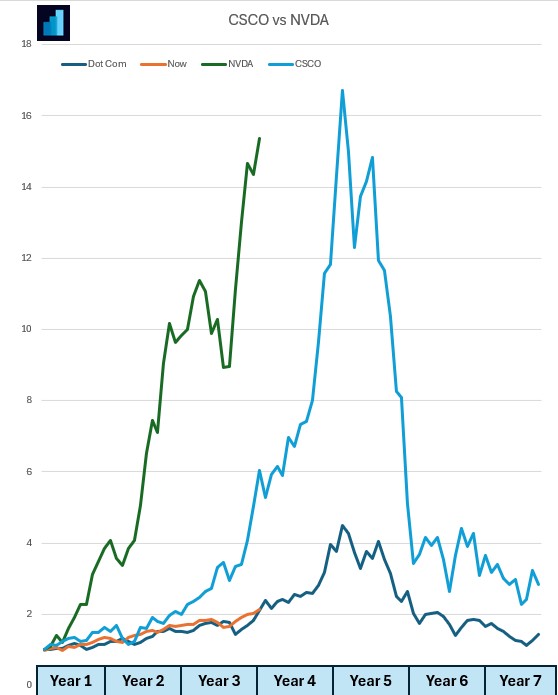
Let’s look at one from the dot com bubble: Cisco (light blue) and one from now: Nvidia (green).

Nvidia has climbed at a much steeper rate than Cisco. Again, similar trajectory and timescales:

Compare CSCO dot com bubble with NVDA stock now

If you want to build financial charts like this yourself check out Excel Price Feed today and try it free for 10 days: https://www.excelpricefeed.com/

Understanding Company Retained Earnings

We recently received a feature request from one of our users to add “Retained Earnings” to our software.

What are Retained Earnings?

Retained earnings represent the cumulative net income a company has reinvested into the business instead of distributing to shareholders as dividends. In other words, it’s the company’s “savings account” of profits.

Retained Earnings = Beginning Retained Earnings + Net Income − Dividends Paid

This figure accumulates over time and reflects how much profit a company has decided to keep rather than return to shareholders. High retained earnings suggest a firm has consistently made profits and reinvested them.

Let’s compare two companies: Apple and Goldman Sachs

Retained Earnings: Apple vs. Goldman Sachs

As of their latest filings:

  • Apple Inc. had retained earnings of approximately $3 billion.
  • Goldman Sachs reported retained earnings exceeding $140 billion.

This comparison may seem surprising at first—after all, Apple is one of the most profitable companies in the world. So why does a financial firm like Goldman Sachs have retained earnings that dwarf Apple’s?

1. Dividend and Buyback Philosophy

Apple has paid significant dividends and engaged in massive share buybacks. Since 2012, Apple has returned hundreds of billions of dollars to shareholders, reducing its retained earnings in the process. This was a strategic choice to reward investors and reduce excess cash.

Goldman Sachs, on the other hand, has historically paid more conservative dividends and buybacks relative to its earnings. The firm tends to retain a large portion of its profits to meet regulatory capital requirements and to support future investment opportunities, such as trading capital or acquisitions.

2. Business Model and Regulatory Requirements

Goldman Sachs operates in a capital-intensive and highly regulated industry. As a major investment bank, it needs to maintain strong capital reserves to comply with Basel III regulations and withstand market shocks. Retaining earnings is one of the primary ways to build that buffer.

Apple, while capital-intensive in R&D and hardware production, doesn’t face the same regulatory capital requirements. Moreover, Apple’s enormous cash reserves (much of which were held overseas until recent tax reforms) meant it didn’t need to rely on retained earnings in the same way.

3. Use of Retained Earnings

Goldman uses retained earnings to:

  • Maintain risk buffers
  • Fund trading desks and investment banking operations
  • Meet regulatory ratios (like Tier 1 capital requirements)

Apple uses retained earnings to:

  • Invest in new products, supply chains, and technologies
  • Fund marketing and international expansion
  • Supplement shareholder returns

In Apple’s case, excess cash and borrowings have been used as alternatives to retained earnings for strategic initiatives, including acquisitions and R&D.

Retained Earnings and Excel Price Feed

So, how do we easily retrieve retained earnings in Excel? We can use the new formula:

=EPF.Yahoo.AnnualRetainedEarnings("GS",2024)

Which returns the Goldman Sachs retained earnings for 2024.

To find out more about Excel Price Feed head over to the website and try it free for 10 days: https://www.excelpricefeed.com/

Excel Price Feed Add-in Release (v1.127)

Today we released a new version of Excel Price Feed. To update your Add-in, please follow the instructions in the User Guide.

This release includes the following changes:

Earnings Estimates: New formulas

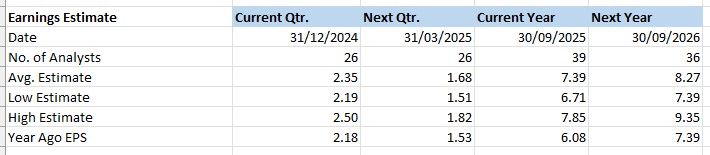
Excel stock analysis earnings estimates for Apple (AAPL) stock using the Excel Price Feed Add-in

We have added the following new formulas:

  • EPF.Yahoo.Earnings.Estimate.NoAnalysts.Annual
  • EPF.Yahoo.Earnings.Estimate.NoAnalysts.Quarter
  • EPF.Yahoo.Earnings.Estimate.Average.Annual
  • EPF.Yahoo.Earnings.Estimate.Average.Quarter
  • EPF.Yahoo.Earnings.Estimate.High.Annual
  • EPF.Yahoo.Earnings.Estimate.High.Quarter
  • EPF.Yahoo.Earnings.Estimate.Low.Annual
  • EPF.Yahoo.Earnings.Estimate.Low.Quarter

For example, this formula retrieves the number of analysts providing “next quarter” earnings estimates for Apple stock:

=EPF.Yahoo.Earnings.Estimate.NoAnalysts.Quarter("AAPL",0)

For more details please see the Excel Price Feed User Guide.

Historical Download: New Option

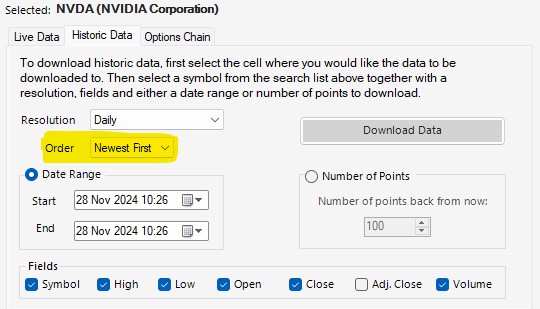
We have added an “Order” by option on the Yahoo Finance historical data download screen:

Yahoo Finance Excel download historical data

New Historic Lookback formulas

We have added 3 new lookback formulas for historical data, and all 3 include a pre-post market option:

  • EPF.Yahoo.Historic1MinuteLookback
  • EPF.Yahoo.Historic5MinuteLookback
  • EPF.Yahoo.Historic1HourLookback

For example, to retrieve 200 x 1 minute periods including pre-post market data, you can now use this formula:

=EPF.Yahoo.Historic1MinuteLookback("AAPL",200,"DESC",1,1)
Excel historic 1 minute intraday data download for Apple (AAPL) stock using the Excel Price Feed Add-in

For more details please see the Excel Price Feed User Guide.

Bug Fixes

Task Pane: fixed text colour.

Are we in an AI fueled stock market bubble?

AI (Artifical Intelligence) chip on a circuit board

AI is everywhere now; not a day goes by without at least one company releasing an AI related news announcement, the latest being Volkswagen who are integrating ChatGPT into their next generation of cars.

These AI announcements are usually accompanied by a spike in the company’s stock price and this, together with the recent rise in the tech and broader market, has prompted some market commentators to declare that we are in an AI fueled stock market bubble.

Are we in a bubble?

Unfortunately, we will only know if and when the bubble bursts; by its very definition we cannot know if we are in a bubble but let’s crunch some numbers to investigate further.

We’ll use Excel Price Feed to get some financial data into Excel, and we’ll start by looking at the “Magnificent Seven”.

What are the Magnificent Seven? Well, these are the largest, most significant players in the global tech industry, and are leading the charge in bringing AI to the masses:

  • Apple
  • Microsoft
  • Alphabet
  • Amazon
  • Nvidia
  • Meta
  • Tesla

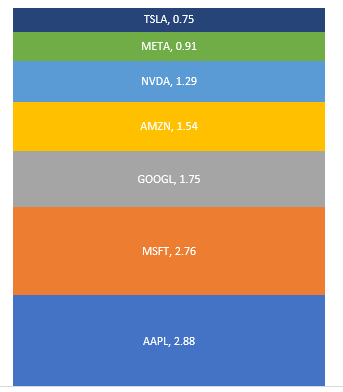
We’ll start with market capitalization, and use the Excel Price Feed formula EPF.Yahoo.MarketCap together with a nice stacked chart to see how they stack up (excuse the pun), units are $trillion:

Magnificent Seven Market Capitalization as of January 2024

The total market capitalization of these 7 companies is almost $12 trillion, but how does this compare to the market in general, say the S&P500?

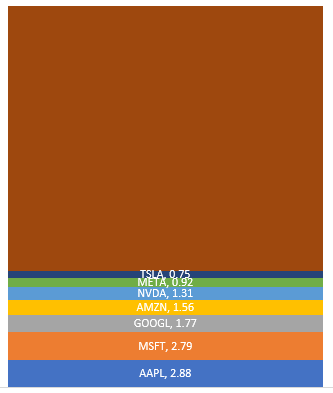
Here we have added the rest of the S&P500 ($27 trillion) and can see that the Magnificent Seven account for more than one quarter of the entire market:

Magnificent Seven stocks market capitalization versus the S&P500

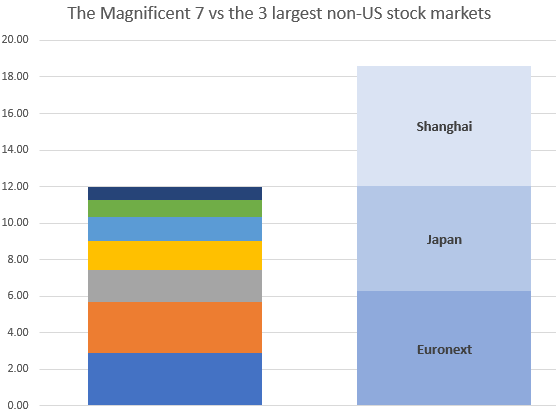
What is even more astounding is how these 7 stack up against entire stock exchanges.

Here we are comparing them with the 3 largest non-US exchanges: Shanghai, Euronext and Japan:

Magnificent Seven market capitalization versus Shanghai, Japan and Euronext stock markets

Now let’s see how they have grown over the last 12 months.

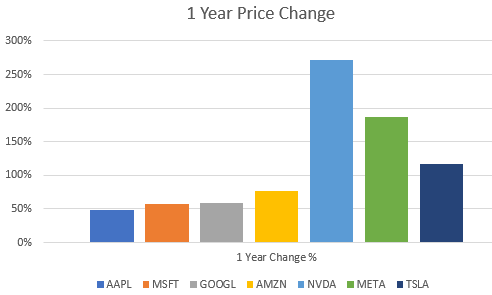
We’ll use the EPF.Yahoo.Historic.Close formula to retrieve the stock price at the start of 2023 and compare it to the current stock price using EPF.Yahoo.Price

Magnificent 7 stocks one year price change chart for 2023

They’ve all increased by at least 50%, with Nvidia, perhaps the most AI centric stock being the star performer.

So, are we in a bubble?

Why not download Excel Price Feed today and crunch some numbers yourself. You can also download the spreadsheet created for this post from our website to get started.

US Treasury Rate Analysis Using Excel

The US Government, via the US Treasury, offers a wide range of fixed income securities to investors for the purposes of Government funding. These securities are categorised as US Treasury bills, notes or bonds – all are equivalent, the different terminology simply refers to the different maturities. The are often referred to simply as “US Treasuries”:

  • Treasury Bonds: Mature in either 20 or 30 years
  • Treasury Notes: Mature between 2 and 10 years
  • Treasury Bills: Mature from 4 weeks upto one year

The US Treasury Rate (or Yield) is the effective interest rate that the US Government pays on it’s debt. This is the rate that holders of a US Treasury can expect to receive, and as you might expect this rate varies depending on a number of factors.

Some of the many factors, both US and global, that can influence rates are:

  • How much confidence investors have in the US economy as well as the global economy
  • Current and expected inflation rates
  • Current and expected market uncertainty and volatility

The most influential and closely monitored US Treasury is the 10 Year Treasury Note. It is used as a benchmark rate for setting lending rates, in particular for banks to calculate mortgage rates. It is also used as a gauge of investor confidence.

When investor confidence drops, US Treasury rates tend to drop as investors move out of risky assets and into the safe haven of US Government backed securities – and conversely when investors are confident, which usually means stock markets are buoyant then rates will increase to attract reluctant investors back into Treasuries.

Using Excel we can look at current and historical US Treasury rates. The US Treasury makes this data freely available and you can use the Excel Price Feed Add-in formulas to easily get this data into your Excel spreadsheet.

Using the Excel formula below we can retrieve a historical time series (1000 daily data points) of US Treasury yields:

=EPF.Nasdaq.HistoricLookback("USTREASURY","YIELD", 1000)

And then plot this data (for the 10 Year Treasury Note) using an Excel chart:

US 10 Year Treasury historical data plotted on an Excel chart.

We can see that during 2020, when the world was in the grip of the COVID-19 pandemic, yield/rates dropped dramatically down to around 0.5% as investors moved out of risky assets and US Treasuries became highly sought after. Yields then steadily rose but have dropped back recently as inflation spiked and interest rates rose around the globe to combat it.

In addition to analysing historical trends of a single US Treasury we can analyse the difference between Treasuries of different maturities, otherwise known as the spread.

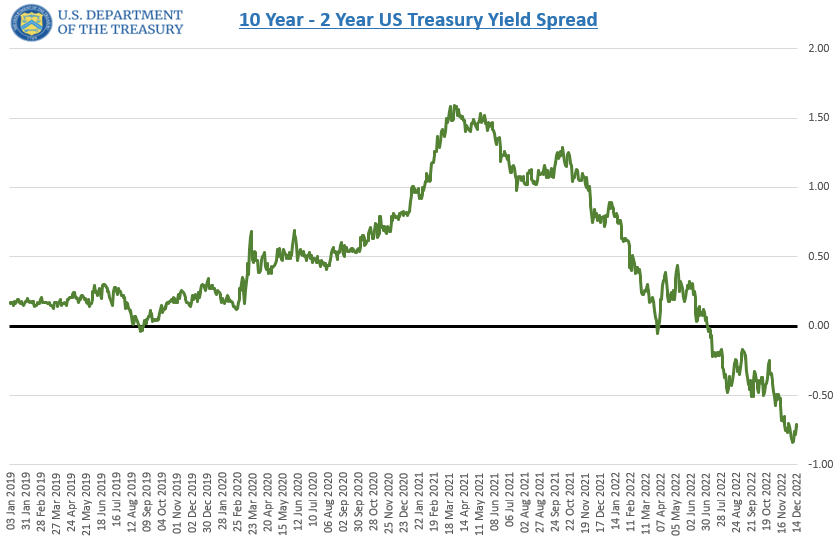
Below we can see the 10 Year – 2 Year Spread, perhaps the most common spread used for analysis, and we can see that it is currently “inverted”, i.e. below zero – the 10 Year yield is less than the 2 Year yield. This is often recognised as a leading indicator of a forthcoming recession:

US 10 year minus 2year treasury yield spread

We can use another of the Excel Price Feed formulas, such as the one below:

=EPF.Nasdaq.Last("USTREASURY","YIELD","10 yr")

to retrieve a single data point, the current yield for a single maturity (in this case the 10 Year). Applying a simple data bar visualization in Excel enables us to see how current yields across maturities compare:

US Treasury Yield Rates in an Excel spreadsheet

We can now clearly see that the 10 year currently has the lowest yield, whereas the 6 month rate has the highest – a spread of over 1%.

I hope this article has given a good overview of what US Treasuries are and how you can use Excel and the Excel Price Feed Add-in formulas to bring US Treasury data into your Excel spreadsheet.

[Click here to download the spreadsheet used in this article]

How to use Excel for Technical Analysis

Simple Moving Average (SMA) chart in Excel

Technical Analysis is used by traders and investors to help identify patterns and trends in historical financial prices. This analysis is often used to produce trading signals or to backtest a trading strategy.

Excel should be a great tool for technical analysis, however traders and investors often struggle with three problems:

  • Getting historical price and volume data into Excel.
  • Writing formulas for indicator calculations.
  • Updating their spreadsheet when new price data is available.

These problems are all solved by using the Excel Technical Analysis Toolkit which has just been released as a new feature of the Excel Price Feed Add-in.

The Toolkit provides a library of new easy-to-use Excel Technical Analysis formulas, so there is no longer a need for complicated Excel formulas or obscure and hard-to-maintain VBA.

Getting historical price and volume data into Excel

Usually, this is achieved by either copying/pasting data from a website/datafeed or downloading a file of prices. With Excel Price Feed you can use one of the many historical data formulas to easily pull prices into your spreadsheet.

For example, to pull daily historical close prices into Excel for the S&P500 Index, you can use this formula:

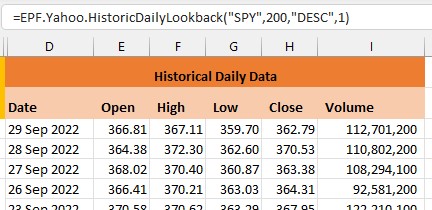
=EPF.Yahoo.HistoricDailyLookback("SPY",200,"DESC",1)

Where 200 is the number of days we need, DESC means display the data in DESCending order, so more recent day first, and 1 means show column headings:

S&P500 historical close prices in Excel

Now that we have the historical price data in Excel, we can now perform some Technical Analysis.

Excel Formulas for Technical Analysis

Suppose we want to look at how Bollinger Bands perform for the S&P500 year-to-date using a 20-period lookback with 2 standard deviations.

Without Excel Price Feed, this is how to calculate Bollinger Bands using standard Excel formulas (note that this shows only one third of the steps required):

As you can see there are a lot of steps and formulas. The equivalent Bollinger Band formula using Excel Price Feed is:

EPF.TA.BollingerBands(prices, dates, lookbackPeriod, standardDeviations)

The first two parameters are simply the close price and date columns of the historical data, and the other two parameters are the number of periods in the lookback and the number of standard deviations.

This is what it looks like in Excel:

Bollinger Bands Excel formula output

Now that the data is in Excel we can easily add an Excel chart to visualize how the bands move with price, and from this we can start to identify support and resistance and potential trend changes:

SPY Bollinger Bands visualized using an Excel chart

Updating the spreadsheet when new price data is available

To produce this data we have used two formulas, one for the historical data and one for the technical analysis. When we want to update the data in our spreadsheet, we simply refresh the spreadsheet. This will result in the latest daily close prices being downloaded and the Bollinger Bands being recalculated.

No more copying and pasting data or formulas.

Excel Price Feed has a built in Refresh button as well as automatic refresh functions:

Excel Price Feed Refresh options.

To find out more about Excel Price Feed head over to the website and try it free for 10 days: https://www.excelpricefeed.com/

American Depository Receipts (ADRs)

What is an ADR?

An ADR is a stock certificate, denominated in US dollars, issued by a US based bank or broker. It represents a specific number of shares, usually one, in a foreign company’s stock i.e. a company that is not listed on a US stock exchange.

ADRs are listed and are tradeable on a US stock exchange such as the NYSE and trade in an equivalent way to any US based stock.

Why trade an ADR?

An ADR enables US investors to gain exposure to foreign stocks without the complication of trading on foreign exchanges. Also, because ADRs are priced in US dollars and their dividends are paid in US dollars, investors do not need to deal with foreign exchange conversions.

In addition, foreign companies find them beneficial as they can attract US based investors without needing to list on a US based stock exchange.

How to retrieve ADR prices in Excel

The Excel Price Feed Add-in provides access to ADR prices via the Yahoo Finance connector.

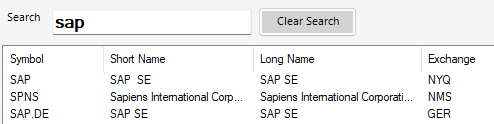
We can find the ADR ticker/symbol using the built-in search function.

For example, below we are searching for the SAP ADR. SAP is a German software company listed on the German stock exchange but not listed in the US:

Searching for the SAP ADR in Excel Price Feed

Here we can see both the German listed stock (SAP.DE on the GER Exchange) as well as the ADR (SAP) listed on the NYSE (NYQ Exchange).

ADRs are treated like regular US stocks, so for example to request the current price of the SAP ADR we use the following Excel formula:

=EPF.Yahoo.Price("SAP")

Which gives the following result in Excel:

SAP ADR stock price in Excel

I hope this gives a good overviews of ADRs and how to easily retrieve ADR data in Excel.

Market Performance 2022 YTD using Excel

Just a quick blog post today, looking at market performance for a bunch of stocks so far this year (otherwise known as year to date or YTD).

As a reference point, today (24 March 2022) the S&P500 is at -6.2% and the Nasdaq is at -11% for YTD.

I am using the Excel Price Feed Add-in to download latest price data and start of year prices for a small set of diverse US stocks. I use the live price formula (EPF.Yahoo.Price) in column C together with the historical price formula (EPF.Yahoo.Historic.Close) in column D to retrieve the stock price on the first trading day of the year which was 3rd January.

This produces the following data table (you can see the formula for cell D2 in the formula bar):

2022 YTD Stock Performance in Excel using the Excel Price Feed Add-in

Now that we have the current stock price and at the start of the year we can calculate the % change using a simple Excel formula which works out the difference (C2-D2) as a proportion of D2:

Calculate stock price YTD change in Excel

Now we can apply this formula to the rest of the table and create a simple bar chart to visualize the performance:

YTD stock performance bar chart in Excel

As we can see the tech sector is under-performing, particularly Facebook and Netflix whilst the oil giants Exxon and Chevron are out-performing everything else.

I hope this gives a good introduction to stock analysis using Excel, to find out more about Excel Price Feed head over to the website and try it free for 10 days: https://www.excelpricefeed.com/

Excel: Calculate trading days between two dates

Yesterday a customer contacted us asking if our financial markets data Add-in could calculate the number of trading days between two dates. Unfortunately we don’t have this functionality as implementing it is not as easy as you may think.

You need to take into account weekends, which for most financial markets are Saturday and Sunday. Exceptions to this include several markets in the Middle East such as Saudi Arabia where the working week is Sunday to Thursday and the “weekend” is Friday and Saturday.

You also need to account for market holidays which are usually, although not always, also national holidays.

Fortunately Excel provides the NETWORKDAYS function, which:

Returns the number of whole working days between start_date and end_date. Working days exclude weekends and any dates identified in holidays.

This function can be used, together with a holiday lookup, to provide the functionality we need.

NETWORKDAYS function in Excel

In the example above we are using a holiday list lookup in column D together with the NETWORKDAYS function in cell B4 to compute the trading days between 21 July 2020 and 1 Dec 2020 for the US market.

The NETWORKDAYS function assumes that weekends are Saturday and Sunday. If you wish to specify a different weekend then you can use the NETWORKDAYS.INTL function.