How to analyze stock split information in Excel

Stock split

If you’ve ever seen a headline such as “Nvidia stock rises after 10-for-1 stock split” and wondered whether that’s actually a big deal, you’re not alone. Stock splits sound technical but the idea behind them is surprisingly simple and they can matter more to investors than they first appear.

What Is a Stock Split?

A stock split happens when a company changes the number of shares outstanding by either dividing or multiplying its existing shares, without changing the overall value of the company.

Think of it like breaking a $100 bill into two $50 bills. You still have $100; it’s just divided into smaller pieces!

Here’s an example:

  • Before the split: You own 1 share priced at $200
  • After a 2-for-1 split: You own 2 shares, each priced at $100
  • Your total investment value stays the same: $200 before, $200 after

Nothing magical happened to the company’s fundamentals. revenue, profits, and market capitalization don’t change just because of a split.

Why Do Companies Split Their Stock?

To Make Shares More Affordable

A high stock price can be intimidating to everyday investors. While fractional shares exist many investors still prefer whole shares. By lowering the price per share, a company:

  • Attracts more retail investors
  • Increases accessibility
  • Makes trading feel more approachable

To Improve Liquidity

Lower share prices often lead to:

  • More trading activity
  • Tighter bid-ask spreads
  • Easier entry and exit for investors

As a Signal of Confidence

Companies usually split their stock after strong price appreciation. Management doesn’t do this randomly; it often reflects confidence in continued growth. While a split itself doesn’t create value, it can reinforce the idea that:

  • The company is doing well
  • Leadership expects the business to keep performing

Why Stock Splits Matter to Investors

From a purely financial perspective nothing changes. But in the real-world lower prices feel “cheaper”, more investors get involved and therefore demand can increase Markets are driven by people, not just spreadsheets!

Some indexes and funds weigh stocks by price or have practical constraints. A lower share price can make inclusion easier and therefore increase exposure to the stock through ETFs and mutual funds. That can mean more automatic buying over time and potentially an appreciating stock price.

Using Excel to Analyze Stock Splits

The Excel Price Feed Add-in includes 3 new Excel formulas for retrieving stock split data:

EPF.Yahoo.Splits.DatePeriod

This Excel formula retrieves a time series of stock splits for the specified ticker and date period.

The example spreadsheet and formula below shows Apple stock (AAPL) splits since 2000:
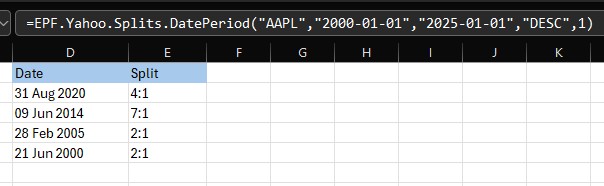
Stock split time series Excel formula

EPF.Yahoo.Splits.LastDate

This Excel formula retrieves the last date there was a stock split event for the specified ticker.

EPF.Yahoo.Splits.LastRatio

This Excel formula retrieves the last stock split ratio event for the specified ticker.

The example spreadsheet below shows a bunch of stocks and their last split date and ratio using these formulas:
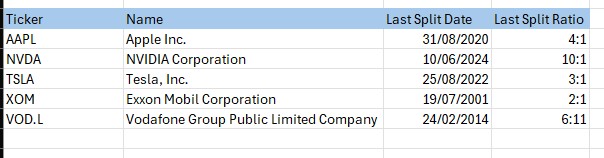
Excel stock split examples

We hope you find these new Excel formulas useful.
Excel visualisation tips for stock portfolio and watchlist spreadsheets

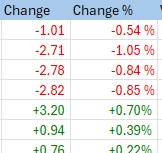
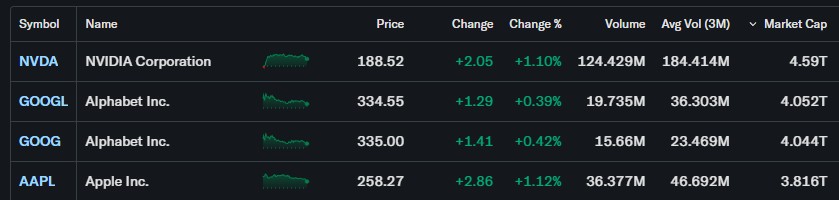
We were recently involved in helping a customer build an stock watchlist Excel spreadsheet based around the Large Cap watchlist on the Yahoo Finance website.

They wanted it to “look good” so here are some techniques we used to improve formatting and visualisations:

Custom number format colours

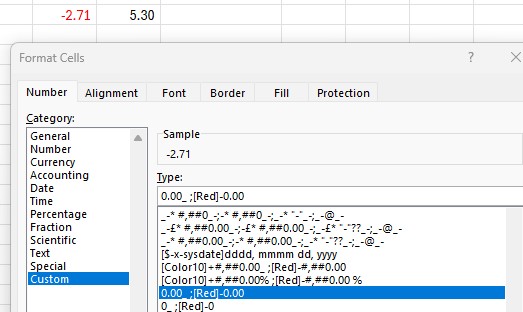
One useful Excel feature for financial spreadsheets is the ability to change the colour of a number depending on whether the number is positive or negative. Usually this is used to show negative numbers as red and positive as black, like this:

Excel custom number formatting

You can see that the negative colour, red, is specified in [] brackets; the semi-colon separates the positive and negative formatting (black is the default colour).

What if we want to show a positive change in green, such as an increase in a stock price? Well, Excel has 8 built in colours:

  • [Black]
  • [Green]
  • [White]
  • [Blue]
  • [Magenta]
  • [Yellow]
  • [Cyan]
  • [Red]

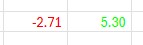
Let’s try green, with this formatting: [Green]0.00 ;[Red]-0.00

Excel number format green and red

Ugh, it’s a horrible luminous green!

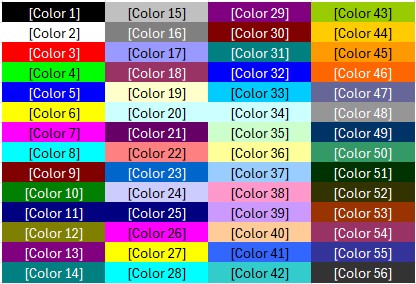
Fortunately there are 56 colours that we can choose from, although these are not well documented by Microsoft and require a colour code rather than a name:

Excel custom number format colors

Let’s try Colour10 instead, and we’ll also add a + symbol to signify a positive change: [Color10]+0.00 ;[Red]-0.00

Excel positive negative number format color

That looks much better!

Data Bars

Data bars are a very simple but effective visualisation technique in Excel to easily show comparisons between numbers.

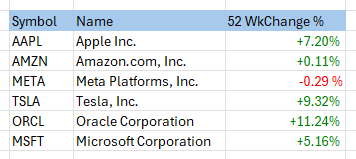
Here we are showing the 52 week percentage change in a stock price for a bunch of stocks:

52 week percentage change stock prices

We would like to add a Data Bar so that a quick visual comparison can be made.

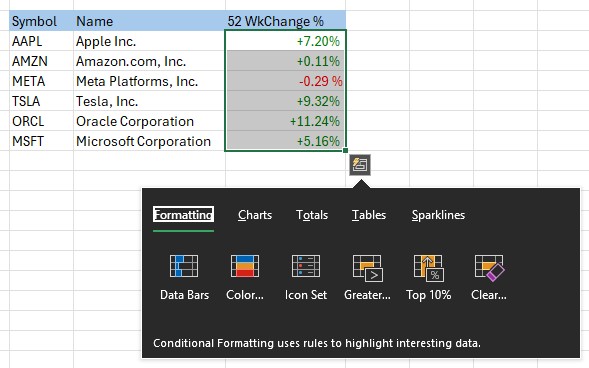
First, we highlight the cells, a small icon appears at the bottom right of the selection, we can then see the various visualisation options:

Excel Data Bars selection dialog

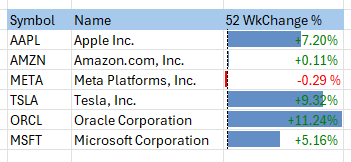
Select “Data Bars”, and the result is horizontal bars which provide a great way to quickly compare values:

Excel stocks 52 week change with a Data Bar visualisation

There are other visualations, known in Excel as “Conditional Formatting” such as Color Scales and Icon Sets which can be used to create similar visualisations.

We hope you find these tips useful.

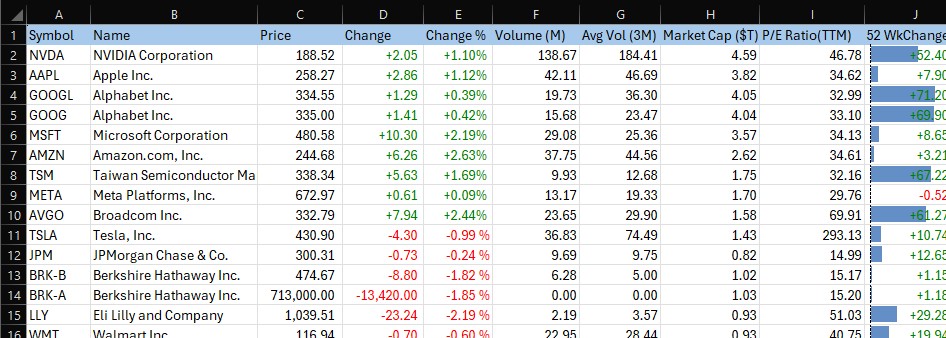
You can download the Large Cap spreadsheet here: https://coderun.blob.core.windows.net/epf/samples/YahooLargeCapStocks.xlsx

It includes Excel Price Feed formulas to retrieve live stock data, so each time you refresh the spreadsheet the values are updated:

Excel Price Feed large cap stocks spreadsheet

Excel Price Feed Add-in Release (v1.139)

Today we released a new version of Excel Price Feed. To update your Add-in, please follow the instructions in the User Guide.

In this release, we plugged in any gaps in formulas which were missing the Quarterly and Trailing 12 Months equivalent. The gaps were in the Balance Sheet, Income Statement and Cash Flow groups of formulas.

You can see these formulas in use in our example Yahoo Finance spreadsheet.

Yahoo Finance: Income Statement formulas

We added the following Quarterly formulas, which take as input a stock ticker and reporting quarter:

  • EPF.Yahoo.QuarterlyImpairmentOfCapitalAssets
  • EPF.Yahoo.QuarterlyOtherSpecialIncomeCharges
  • EPF.Yahoo.QuarterlyRestructuringAndMergersAcquisition
  • EPF.Yahoo.QuarterlySpecialIncomeCharges
  • EPF.Yahoo.QuarterlyWriteOff

And the following Trailing 12 Month (TTM) Formulas, which take as input just a stock ticker:

  • EPF.Yahoo.TTMImpairmentOfCapitalAssets
  • EPF.Yahoo.TTMOtherSpecialIncomeCharges
  • EPF.Yahoo.TTMRestructuringAndMergersAcquisition
  • EPF.Yahoo.TTMSpecialIncomeCharges
  • EPF.Yahoo.TTMWriteOff

Here is an example of the new formulas used in a sheet. This dataset is for the NWL ticker.

And here are a couple of examples of formulas we used:

=EPF.Yahoo.QuarterlyImpairmentOfCapitalAssets("NWL",0)/1000
=EPF.Yahoo.TTMImpairmentOfCapitalAssets("NWL")/1000

Please bear in mind when using these formulas that not every company reports the same type of information so sometimes the formulas might return #NUM!

For more details please see the Excel Formula Reference: Income Statement section in the User Guide.

Yahoo Finance: Balance Sheet formulas

We also added some additional formulas for retrieving Quarterly figures, which all take as inputs a stock ticker and a quarter. Yahoo doesn’t make available equivalent TTM formulas.

  • EPF.Yahoo.QuarterlyAccountsPayable
  • EPF.Yahoo.QuarterlyAccountsReceivable
  • EPF.Yahoo.QuarterlyAssetsTotalCash
  • EPF.Yahoo.QuarterlyCapitalLeaseObligations
  • EPF.Yahoo.QuarterlyCurrentAssets
  • EPF.Yahoo.QuarterlyCurrentLiabilities
  • EPF.Yahoo.QuarterlyGoodwill
  • EPF.Yahoo.QuarterlyGoodwillAndOtherIntangibleAssets
  • EPF.Yahoo.QuarterlyInventory
  • EPF.Yahoo.QuarterlyInvestedCapital
  • EPF.Yahoo.QuarterlyLongTermDebt
  • EPF.Yahoo.QuarterlyNetDebt
  • EPF.Yahoo.QuarterlyNetPropertyPlantEquipment
  • EPF.Yahoo.QuarterlyRetainedEarnings
  • EPF.Yahoo.QuarterlyStockholdersEquity
  • EPF.Yahoo.QuarterlyTangibleBookValue
  • EPF.Yahoo.QuarterlyTotalAssets
  • EPF.Yahoo.QuarterlyTotalDebt
  • EPF.Yahoo.QuarterlyTotalLiabilities
  • EPF.Yahoo.QuarterlyTotalNonCurrentAssets
  • EPF.Yahoo.QuarterlyTotalNonCurrentLiabilities
  • EPF.Yahoo.QuarterlyWorkingCapital

Here is an example of these new formulas in action:

And here are some examples of the new formulas we used:

=EPF.Yahoo.QuarterlyAccountsPayable("NWL",0)/1000
=EPF.Yahoo.QuarterlyAccountsReceivable("NWL",0)/1000

For more details please see the Excel Formula Reference: Balance Sheet section in the User Guide.

Yahoo Finance: Cash Flow formulas

Lastly, we added quite a few additional Quarterly and TTM formulas for Cash Flow. Along with the formulas for Free Cash flow (added in the previous version) below are all the Cash Flow formulas in the system.

Quarterly formulas:

  • EPF.Yahoo.QuarterlyAccountsPayableChange
  • EPF.Yahoo.QuarterlyAccountsReceivableChange
  • EPF.Yahoo.QuarterlyAcquisitions
  • EPF.Yahoo.QuarterlyBeginningCashPosition
  • EPF.Yahoo.QuarterlyCapitalExpenditures
  • EPF.Yahoo.QuarterlyChangeInCash
  • EPF.Yahoo.QuarterlyChangeInWorkingCapital
  • EPF.Yahoo.QuarterlyCommonStockIssued
  • EPF.Yahoo.QuarterlyCommonStockRepurchased
  • EPF.Yahoo.QuarterlyDebtRepayment
  • EPF.Yahoo.QuarterlyDeferredIncomeTax
  • EPF.Yahoo.QuarterlyDepreciationAndAmortization
  • EPF.Yahoo.QuarterlyDividendsPaid
  • EPF.Yahoo.QuarterlyEndCashPosition
  • EPF.Yahoo.QuarterlyFreeCashFlow
  • EPF.Yahoo.QuarterlyInventoryChange
  • EPF.Yahoo.QuarterlyOtherCashflowsFromInvestingActivities
  • EPF.Yahoo.QuarterlyOtherFinancingActivities
  • EPF.Yahoo.QuarterlyOtherNonCashItems
  • EPF.Yahoo.QuarterlyPurchasesOfInvestments
  • EPF.Yahoo.QuarterlySalesOfInvestments
  • EPF.Yahoo.QuarterlyStockBasedCompensation
  • EPF.Yahoo.QuarterlyTotalCashflowsFromFinancingActivities
  • EPF.Yahoo.QuarterlyTotalCashflowsFromInvestingActivities
  • EPF.Yahoo.QuarterlyTotalCashflowsFromOperatingActivities

Trailing 12 Month (TTM) formulas:

  • EPF.Yahoo.TTMAccountsPayableChange
  • EPF.Yahoo.TTMAccountsReceivableChange
  • EPF.Yahoo.TTMAcquisitions
  • EPF.Yahoo.TTMBeginningCashPosition
  • EPF.Yahoo.TTMCapitalExpenditures
  • EPF.Yahoo.TTMChangeInCash
  • EPF.Yahoo.TTMChangeInWorkingCapital
  • EPF.Yahoo.TTMCommonStockIssued
  • EPF.Yahoo.TTMCommonStockRepurchased
  • EPF.Yahoo.TTMDebtRepayment
  • EPF.Yahoo.TTMDeferredIncomeTax
  • EPF.Yahoo.TTMDepreciationAndAmortization
  • EPF.Yahoo.TTMDividendsPaid
  • EPF.Yahoo.TTMEndCashPosition
  • EPF.Yahoo.TTMFreeCashFlow
  • EPF.Yahoo.TTMInventoryChange
  • EPF.Yahoo.TTMOtherCashflowsFromInvestingActivities
  • EPF.Yahoo.TTMOtherFinancingActivities
  • EPF.Yahoo.TTMOtherNonCashItems
  • EPF.Yahoo.TTMPurchasesOfInvestments
  • EPF.Yahoo.TTMSalesOfInvestments
  • EPF.Yahoo.TTMStockBasedCompensation
  • EPF.Yahoo.TTMTotalCashflowsFromFinancingActivities
  • EPF.Yahoo.TTMTotalCashflowsFromInvestingActivities
  • EPF.Yahoo.TTMTotalCashflowsFromOperatingActivities

Here is an example of the new formulas used in a sheet. This dataset is for the MSFT ticker.

Again the Quarterly formulas take a input a ticker and a reporting quarter and the Trailing 12 Month (TTM) Formulas take as input just a stock ticker. Examples:

=EPF.Yahoo.QuarterlyDividendsPaid("MSFT",0)/1000
=EPF.Yahoo.TTMDividendsPaid("MSFT")/1000

Please download our example Yahoo Finance spreadsheet to find examples of using these formulas.

We hope you find them useful. Let us know if there are any more formulas you would like us to add.

Are we in an AI fueled stock market bubble?

AI (Artifical Intelligence) chip on a circuit board

AI is everywhere now; not a day goes by without at least one company releasing an AI related news announcement, the latest being Volkswagen who are integrating ChatGPT into their next generation of cars.

These AI announcements are usually accompanied by a spike in the company’s stock price and this, together with the recent rise in the tech and broader market, has prompted some market commentators to declare that we are in an AI fueled stock market bubble.

Are we in a bubble?

Unfortunately, we will only know if and when the bubble bursts; by its very definition we cannot know if we are in a bubble but let’s crunch some numbers to investigate further.

We’ll use Excel Price Feed to get some financial data into Excel, and we’ll start by looking at the “Magnificent Seven”.

What are the Magnificent Seven? Well, these are the largest, most significant players in the global tech industry, and are leading the charge in bringing AI to the masses:

  • Apple
  • Microsoft
  • Alphabet
  • Amazon
  • Nvidia
  • Meta
  • Tesla

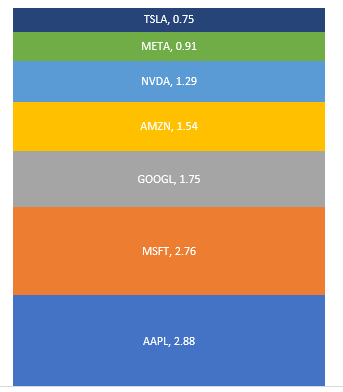
We’ll start with market capitalization, and use the Excel Price Feed formula EPF.Yahoo.MarketCap together with a nice stacked chart to see how they stack up (excuse the pun), units are $trillion:

Magnificent Seven Market Capitalization as of January 2024

The total market capitalization of these 7 companies is almost $12 trillion, but how does this compare to the market in general, say the S&P500?

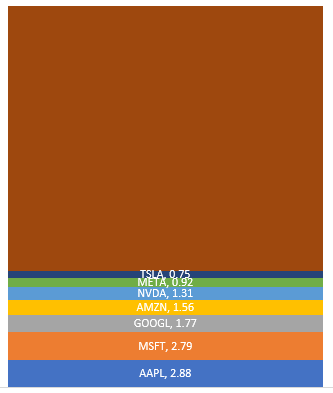
Here we have added the rest of the S&P500 ($27 trillion) and can see that the Magnificent Seven account for more than one quarter of the entire market:

Magnificent Seven stocks market capitalization versus the S&P500

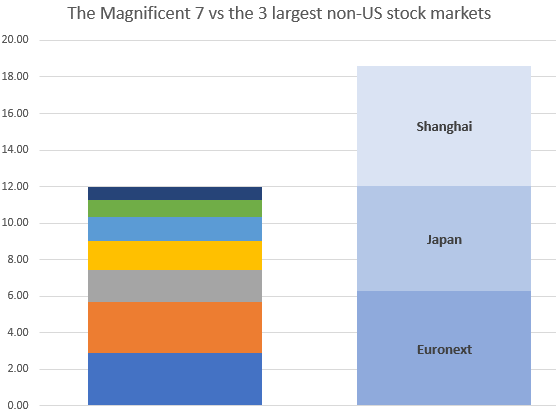
What is even more astounding is how these 7 stack up against entire stock exchanges.

Here we are comparing them with the 3 largest non-US exchanges: Shanghai, Euronext and Japan:

Magnificent Seven market capitalization versus Shanghai, Japan and Euronext stock markets

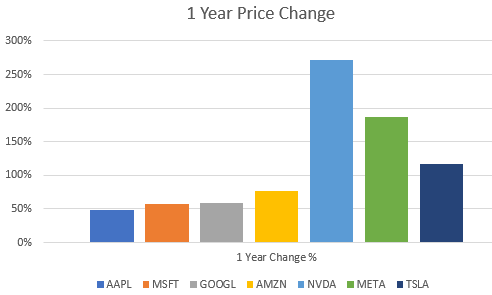
Now let’s see how they have grown over the last 12 months.

We’ll use the EPF.Yahoo.Historic.Close formula to retrieve the stock price at the start of 2023 and compare it to the current stock price using EPF.Yahoo.Price

Magnificent 7 stocks one year price change chart for 2023

They’ve all increased by at least 50%, with Nvidia, perhaps the most AI centric stock being the star performer.

So, are we in a bubble?

Why not download Excel Price Feed today and crunch some numbers yourself. You can also download the spreadsheet created for this post from our website to get started.