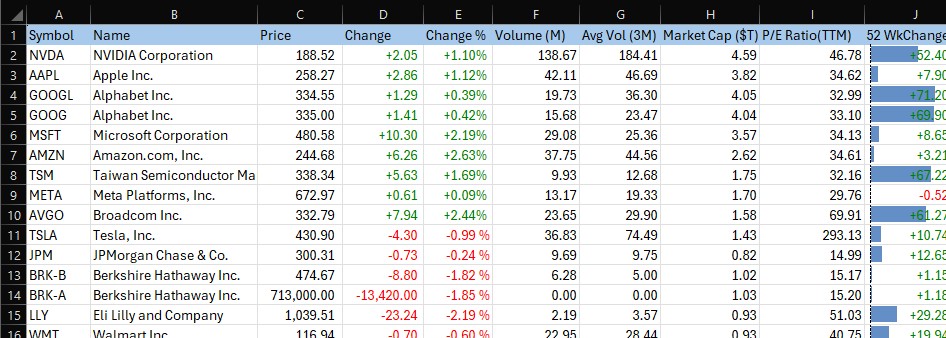
Today we released a new version of Excel Price Feed. To update your Add-in, please follow the instructions in the User Guide.
This release includes the following changes:
Yahoo Finance: EPF.Yahoo.HistoricDatePeriod formula
We’ve made several improvements to this formula.
We have fixed an issue which affected certain stock/date combinations which returned additional data points outside the requested date range.
We have also added an additional optional parameter includePrePost which if set will include pre and post market data in the returned time series (for periods less than daily).
We have also made 3 of the parameters optional so you just need to specify a ticker, period and start/end date.
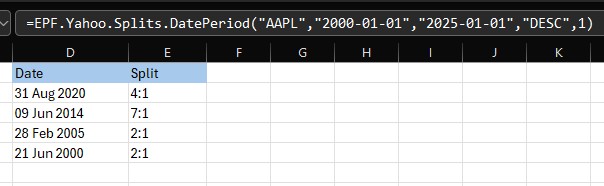
For example, this formula will return hourly data for Apple from 1 to 4 October; it will return headers, date in descending date order and not include pre or post market data:
There are lies, damned lies and statistics. There are also charts that are published to mislead or to simply reinforce a point of view that’s flimsy at best or just plain wrong.
These charts are known as “chart crimes” and one appeared all over social media last month. Usually I would just make a comment and move on but this one received over 2 million views and deserves further investigation.
It was a chart comparing the growth of the Nasdaq over two periods: the dot com bubble and the current AI “bubble”. The conclusion being that we are on the same upward trajectory and all things being equal are due a major crash anytime soon.
Aside from the obvious lack of timescale on the x axis and disparity in y axis scaling, does this chart bear any resemblance to reality?
Let’s build our own using Excel Price Feed to retrieve historical market data and produce an Excel chart based on the actual data.
For the Dot com bubble period we will use 1996 to 2002 and for present day we will look at data from Q4 2022 (when ChatGPT was released) to now.
To retrieve the data we will use the Excel Price Feed HistoricDatePeriod formula. Here is an example of how to retrieve monthly data for the NASDAQ Composite Index:
=EPF.Yahoo.HistoricDatePeriod("^IXIC","MONTHLY","1 Sep 2022","1 Oct 2025","ASC",1)
We will base each time series to 1 so we are comparing like-for-like. To do this we simply divide each point by the initial starting point.
We can now plot this data in Excel; the blue line is the dot com bubble, and the orange line is the past 3 years:
Not nearly as dramatic, the trajectory is similar but we are barely halfway towards the dot-com crash equivalent peak. So if the past is an indicator of the future then we should expect the market to double again from here and crash in about a year. But as they say, the past is not always a predictor of the future…
What about individual stocks?
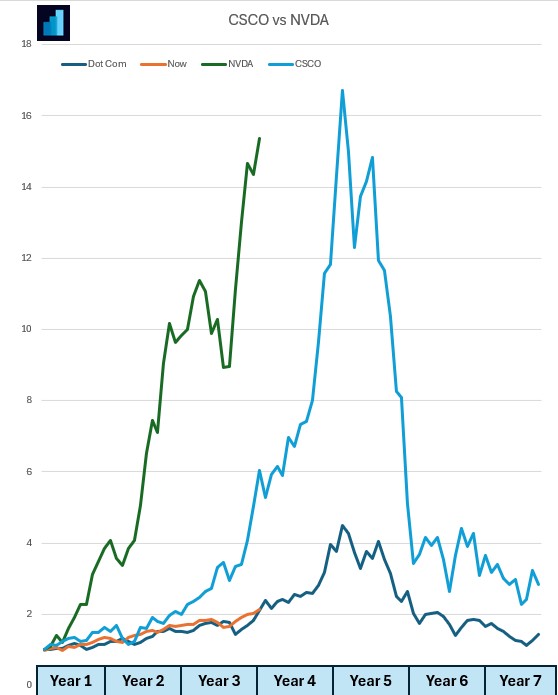
Let’s look at one from the dot com bubble: Cisco (light blue) and one from now: Nvidia (green).
Nvidia has climbed at a much steeper rate than Cisco. Again, similar trajectory and timescales:
If you want to build financial charts like this yourself check out Excel Price Feed today and try it free for 10 days: https://www.excelpricefeed.com/
We were recently contacted by a user who was trying to calculate the market high and low over an particular date period and more importantly the date that the high or low was reached.
Neither Excel Price Feed nor Excel have a single formula to calculate this, but we can use several Excel functions to achieve it.
For this example we will look at daily data, although the procedure and formulas used can be applied to any timeframe.
B1 is the stock ticker, B2 is the start date and B3 is the end date.
This formula outputs a table as shown below, the formula is in cell D1:
Finding the highest high over the period is easy, we simply use the MAX formula to find the maximum value of all the daily highs (column F):
=MAX(F:F)
To find the lowest low we use the MIN formula with column G:
=MIN(G:G)
The hard part is finding the date at which the highest high and lowest low was reached. We can achieve this by using a combination of Excel functions.
We will now walk through how to find the date of the highest high, which is in cell B5:
Using the MATCH function we can find the row where the highest high was achieved. The MATCH function searches a range, in this case the column (G:G) and finds the row where the highest high is, in this case the value in cell B5 (260.10).
We then take this row and use the ADDRESS function to combine it with the column where the date is located, column E (or the 5th column as this function requires a numeric column reference).
We now have an address for the location of the date, via a column and row number. To return the actual value at this address we must use the INDIRECT function, this will then provide the date value of “26 Dec 2024”
The full formula looks like this:
=INDIRECT(ADDRESS(MATCH(B5,G:G,0),5))
Below we can see the full formula in the formula bar at the top and the result is “26 Dec 2024”:
To find the date of the lowest low we just replace column G with column H and the low which is in cell B5.
We hope you find this useful and if you would like to try the spreadsheet for yourself you can download it from here.
We have had several customer discussions recently regarding date formulas, as dates are an important aspect of financial data.
All of the date/times used throughout the Add-in are in UTC format.
UTC (Coordinated Universal Time) is the main global time standard and establishes a single timezone across the planet.
The question is, how does a UTC time translate to my local (timezone) time?
You may search on the web and find a simple solution that adds or subtracts a number of hours to the date, however these solutions do not account for adjustments due to daylight savings time.
We have therefore started adding some general date formulas to our software, the first of which is: EPF.Dates.UTCToLocal
This simple Excel formula is useful for converting any UTC date/time to the date/time in the timezone of your PC/Excel. It handles all timezones as well as daylight savings.
We’ve created a quick video to show this formula in action:
We are looking at adding more date functionality around timezones. Do let us know if there is some date functionality that you think is missing from Excel and we can look into adding it.
We recently received a feature request from one of our users to add “Retained Earnings” to our software.
What are Retained Earnings?
Retained earnings represent the cumulative net income a company has reinvested into the business instead of distributing to shareholders as dividends. In other words, it’s the company’s “savings account” of profits.
Retained Earnings = Beginning Retained Earnings + Net Income − Dividends Paid
This figure accumulates over time and reflects how much profit a company has decided to keep rather than return to shareholders. High retained earnings suggest a firm has consistently made profits and reinvested them.
Let’s compare two companies: Apple and Goldman Sachs
Retained Earnings: Apple vs. Goldman Sachs
As of their latest filings:
Apple Inc. had retained earnings of approximately $3 billion.
This comparison may seem surprising at first—after all, Apple is one of the most profitable companies in the world. So why does a financial firm like Goldman Sachs have retained earnings that dwarf Apple’s?
1. Dividend and Buyback Philosophy
Apple has paid significant dividends and engaged in massive share buybacks. Since 2012, Apple has returned hundreds of billions of dollars to shareholders, reducing its retained earnings in the process. This was a strategic choice to reward investors and reduce excess cash.
Goldman Sachs, on the other hand, has historically paid more conservative dividends and buybacks relative to its earnings. The firm tends to retain a large portion of its profits to meet regulatory capital requirements and to support future investment opportunities, such as trading capital or acquisitions.
2. Business Model and Regulatory Requirements
Goldman Sachs operates in a capital-intensive and highly regulated industry. As a major investment bank, it needs to maintain strong capital reserves to comply with Basel III regulations and withstand market shocks. Retaining earnings is one of the primary ways to build that buffer.
Apple, while capital-intensive in R&D and hardware production, doesn’t face the same regulatory capital requirements. Moreover, Apple’s enormous cash reserves (much of which were held overseas until recent tax reforms) meant it didn’t need to rely on retained earnings in the same way.
3. Use of Retained Earnings
Goldman uses retained earnings to:
Maintain risk buffers
Fund trading desks and investment banking operations
Meet regulatory ratios (like Tier 1 capital requirements)
Apple uses retained earnings to:
Invest in new products, supply chains, and technologies
Fund marketing and international expansion
Supplement shareholder returns
In Apple’s case, excess cash and borrowings have been used as alternatives to retained earnings for strategic initiatives, including acquisitions and R&D.
Retained Earnings and Excel Price Feed
So, how do we easily retrieve retained earnings in Excel? We can use the new formula:
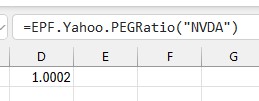
=EPF.Yahoo.AnnualRetainedEarnings("GS",2024)
Which returns the Goldman Sachs retained earnings for 2024.
To find out more about Excel Price Feed head over to the website and try it free for 10 days: https://www.excelpricefeed.com/
Interest in ethical and sustainable issues has exploded over recent years and today we can see these issues start to influence those in the financial investment community. Investors are increasingly taking into account non-financial factors in their portfolio selection, including the impact a company has on the environment and society.
This shift was compounded yesterday as US President Biden issued an executive order requiring development of a comprehensive government-wide climate risk strategy. This strategy will influence how and where the US Government directs it’s annual $680 billion budget for goods and services. It also sets in motion plans to revise the Trump-era rules that required pension fund managers to put their members financial interests ahead of climate change and other environmental issues when allocating funds for investments.
The winners in this process will be those companies and suppliers that score highly on environmental and sustainable measures.
ESG (Environment, Social and Governance) Ratings
But how do investors identify and select investments based on non-financial measures such as environmental impact?
This is where ESG (Environment, Social and Governance) Ratings come in. These ratings provide a numerical value which scores how ethical or sustainable a company is. One of the market leaders in providing ESG Risk Ratings is Sustainalytics, a Morningstar company.
They provide Risk Ratings, for many companies, which are scored on a scale from 0 to 40+, with low numbers representing a low risk and high numbers indicating a high risk/impact:
Building the Portfolio
We’ll start with the S&P500 and just look at the top 30 largest companies. We want to rank these companies based on their ESG ratings and for this we can use the ESG Excel formulas provided by the Excel Price Feed Add-in.
Here is the top 5 stocks in the S&P500, we have added formulas for Market Capitalization and ESG Total Score:
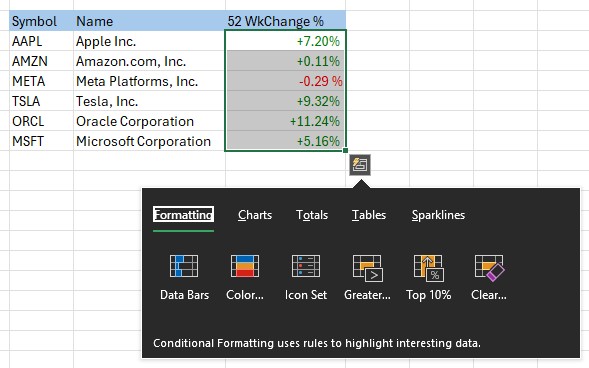
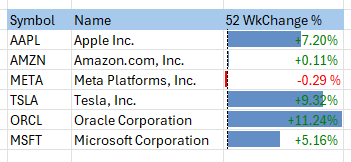
This is a good start but we can improve it considerably by using some of the Excel data visualization tools. For example, we can add a “Heat Map” effect to the ESG Risk Score, this will enable us to quickly see which stocks have a high or low score. We can also add a “Data Bar” to the Market Cap column so we can easily compare the size of the company.
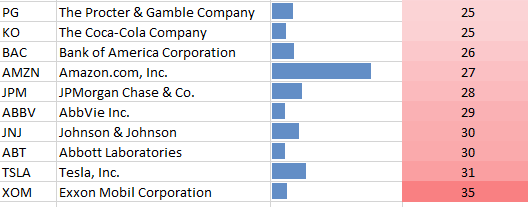
We can also use the Excel Data-Sort function to sort our list by ESG Risk Score, this gives us the following for the top 10 stocks:
And for the bottom 10:
It was not a surprise that Exxon at the bottom, but I was surprised to see so many pharmaceutical companies represented in the bottom 10.
We can refine our data further by not only comparing the stocks against each other but against their peers. For example, a company might have a relatively good score compared to the general market but not perform well against its peers, i.e. companies operating in the same industry/sector.
I’ve added a further two columns, one showing the risk score for its peers, and another showing the difference compared to its peers. I have also used a “Data Bar” to highlight the difference: a red bar (negative) indicates a score lower than its peers (a good thing) whereas a blue bar indicates a higher score.
Here is the a full ESG analysis of the top 30 stocks in the S&P500:
Hopefully this gives you some ideas on how you can go about building your own ethical portfolio.
Visit the Excel Price Feed website to download the Add-in to provide all the Excel formulas used to build the spreadsheet shown above.